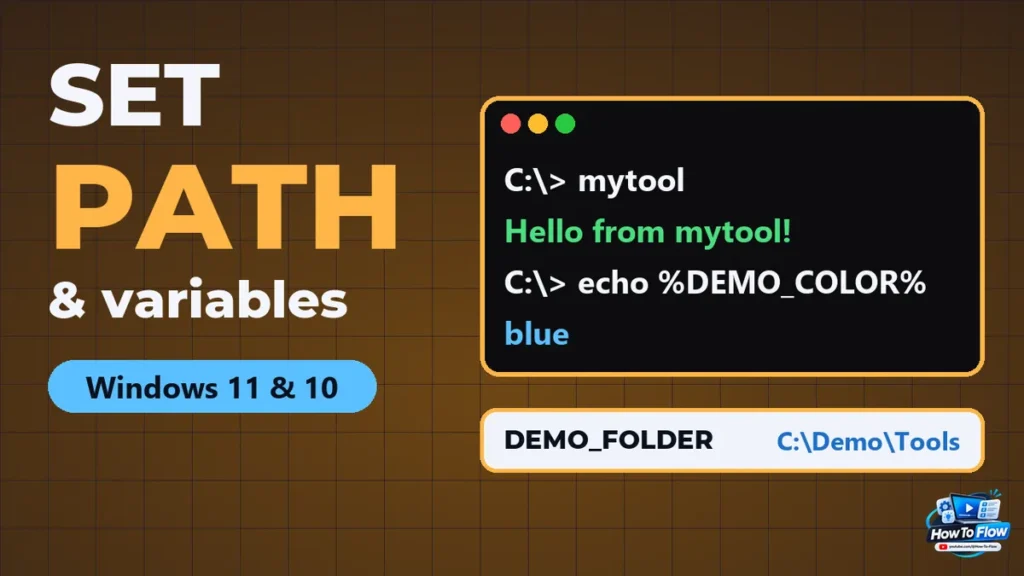
An environment variable is a named setting – a label with a value – that programs can read. PATH is a special one: a list of folders where Windows looks for programs when you type a command. Developers, command-line tools, Java, Python and many installers rely on them.
In this guide you will learn three things in Windows 11 and Windows 10:
- Method 1 – create a variable in the Environment Variables window,
- Method 2 – add a folder to your PATH,
- Method 3 – set a variable with one command (
setx).
We use user variables: they only affect your account and do not need administrator rights.
Method 1: Create a new environment variable
Step 1. Open Environment Variables
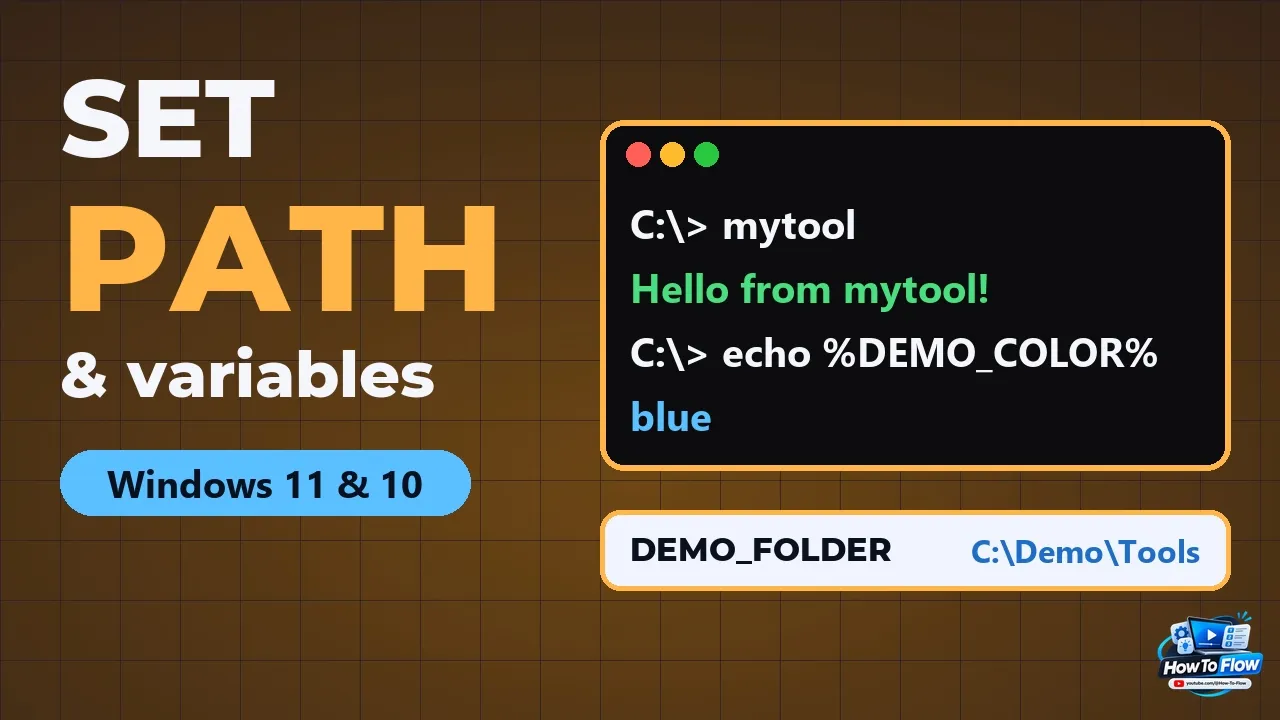
Click Start, type environment and choose Edit environment variables for your account. The Environment Variables window opens. The top list holds your User variables.
Step 2. Click New and type a name
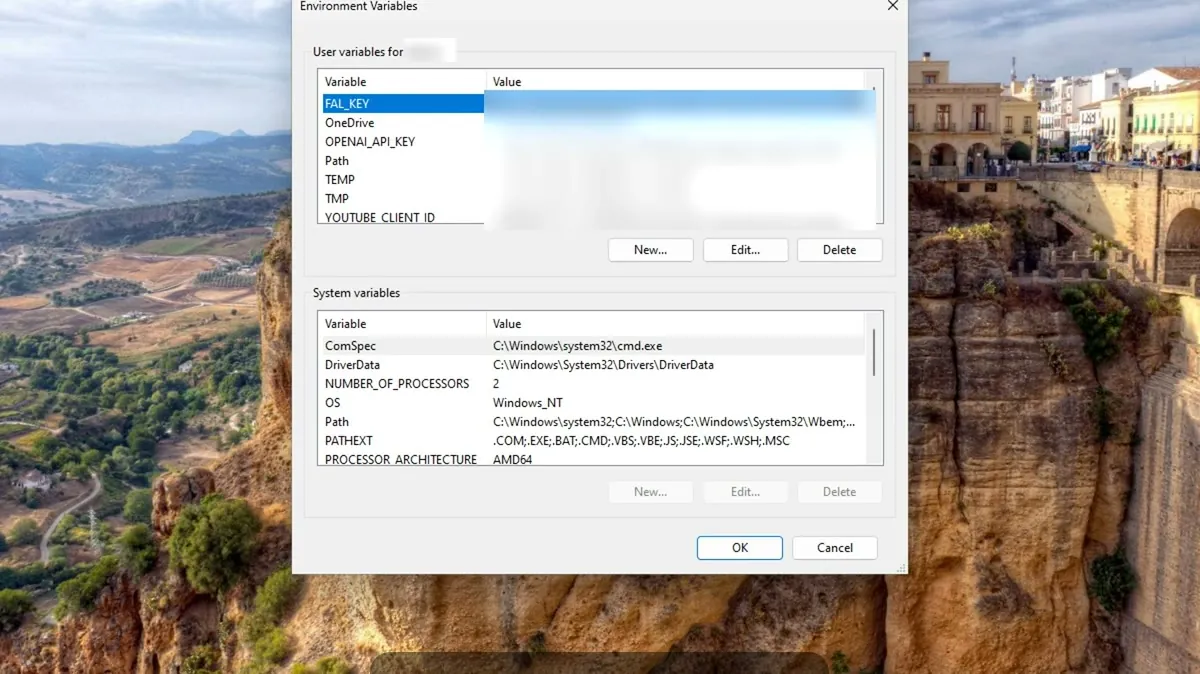
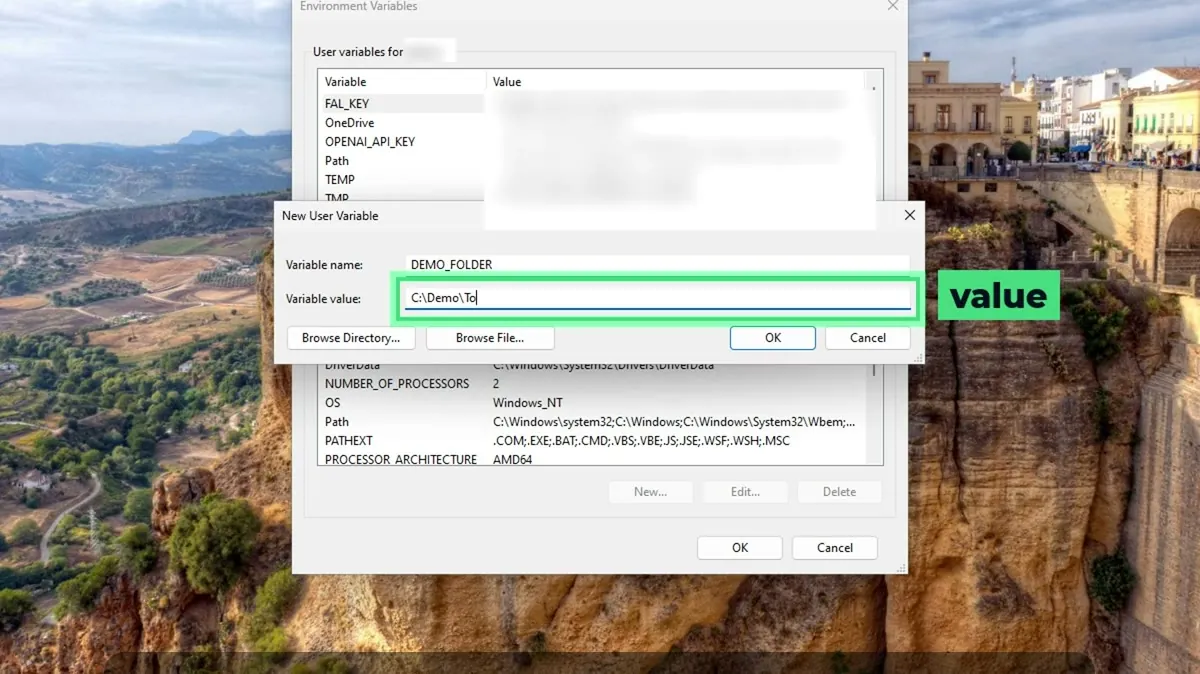
Under User variables, click New…. In Variable name type a name, for example DEMO_FOLDER.
Step 3. Type the value and click OK
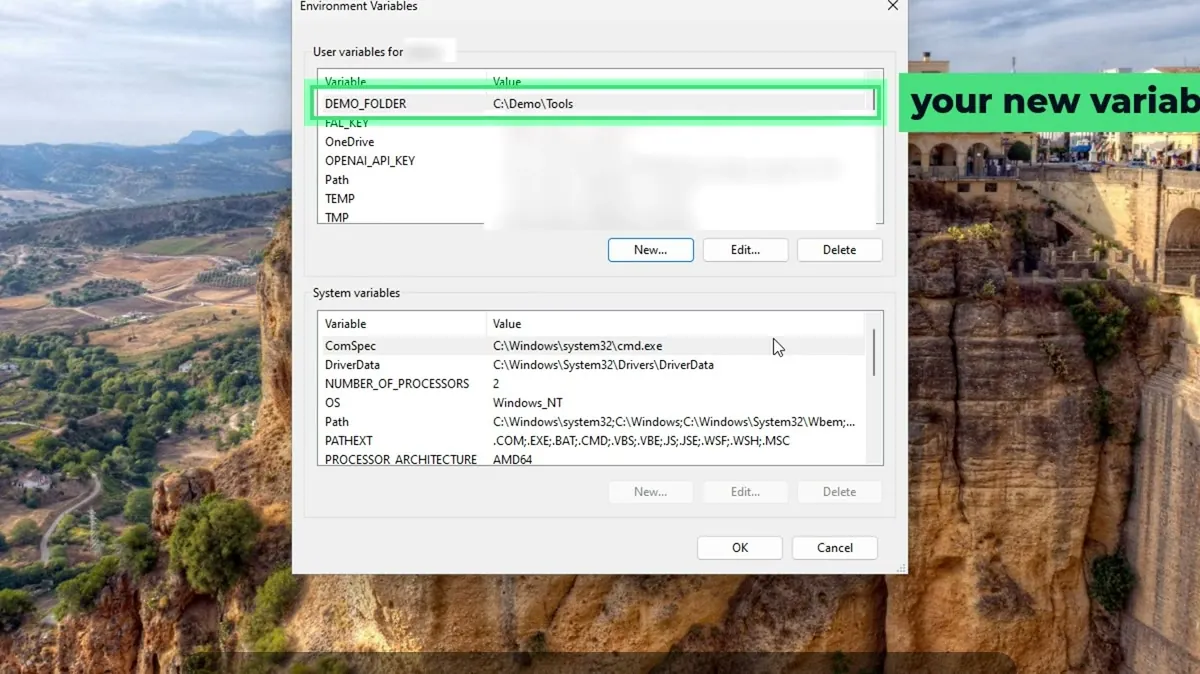
In Variable value type the value, here the folder C:\Demo\Tools, and click OK.
Your new variable now appears in the list.
Method 2: Add a folder to PATH
Step 1. Edit the Path variable
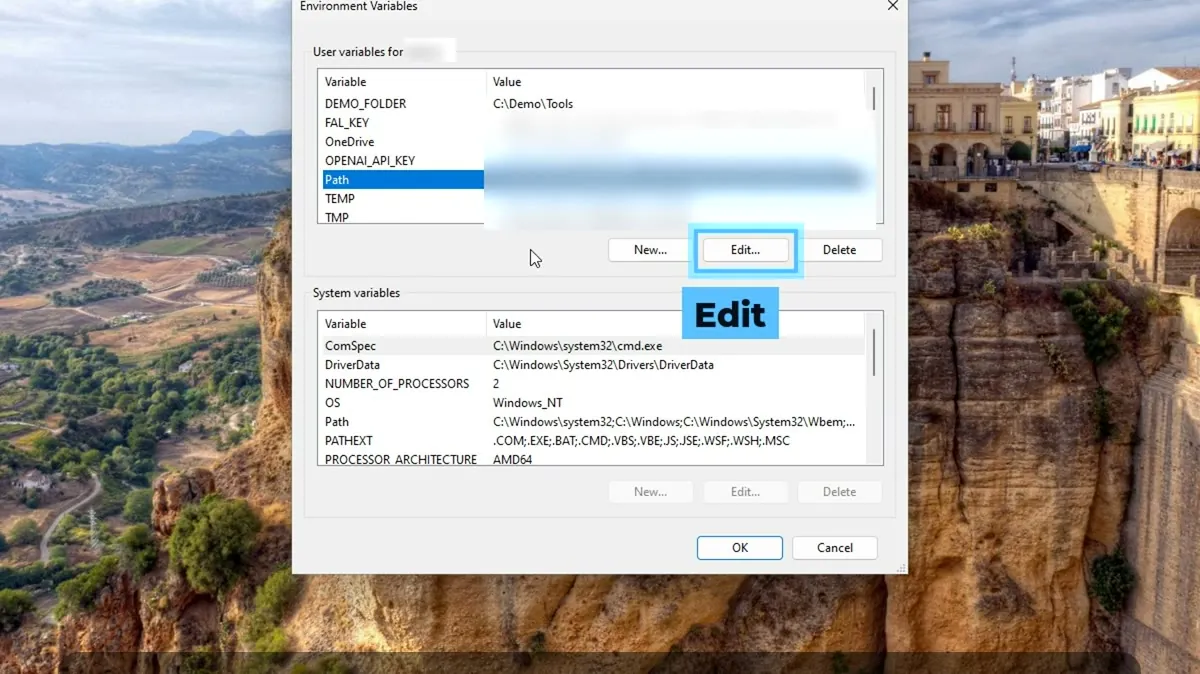
In the same window, select Path under User variables and click Edit….
Step 2. Click New
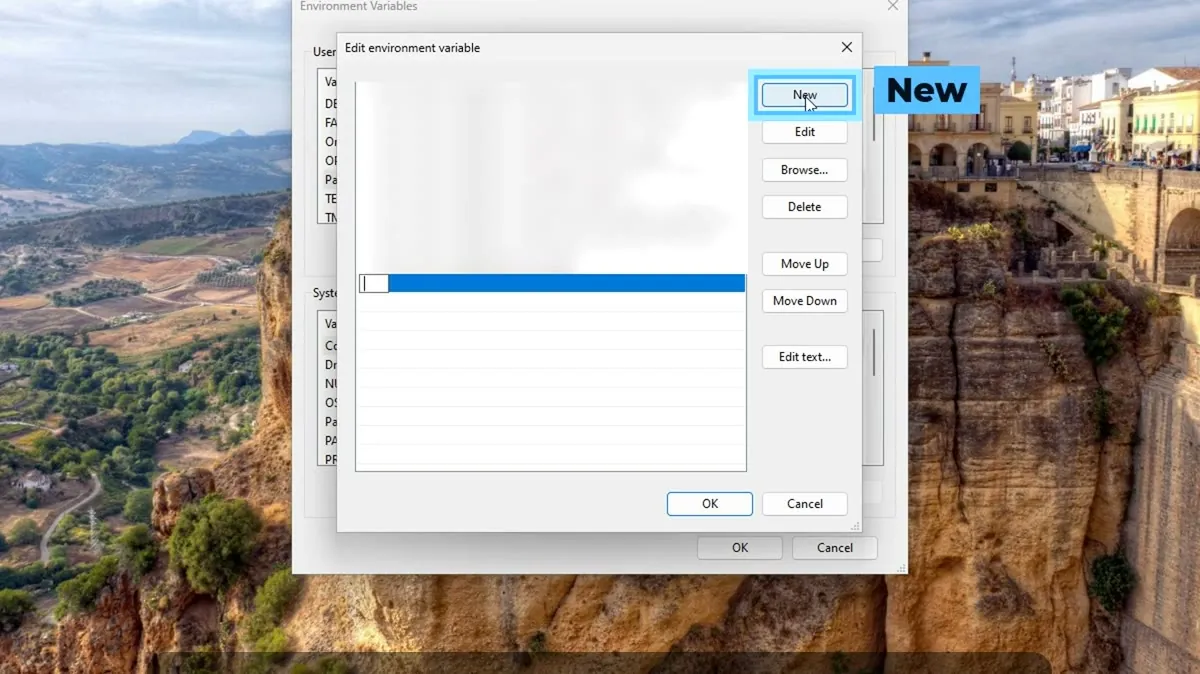
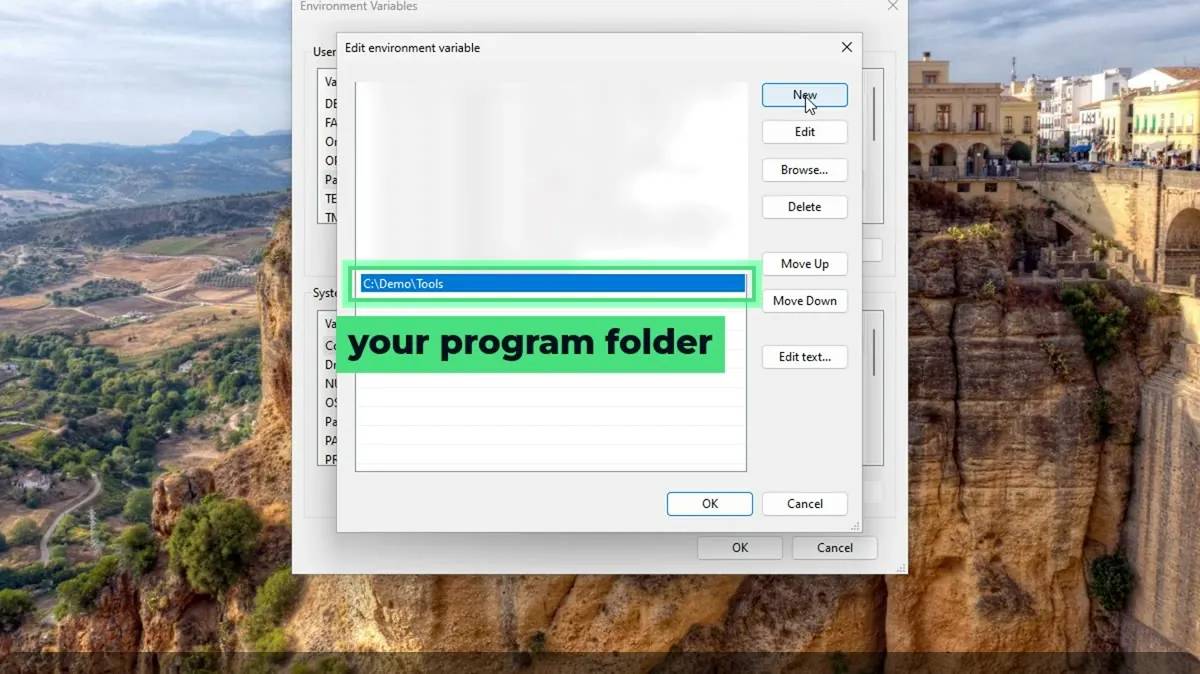
In the Edit environment variable window, click New. An empty line appears at the end of the list.
Step 3. Type the program folder
Type the folder that contains your program, e.g. C:\Demo\Tools, and press Enter.
Step 4. Click OK twice
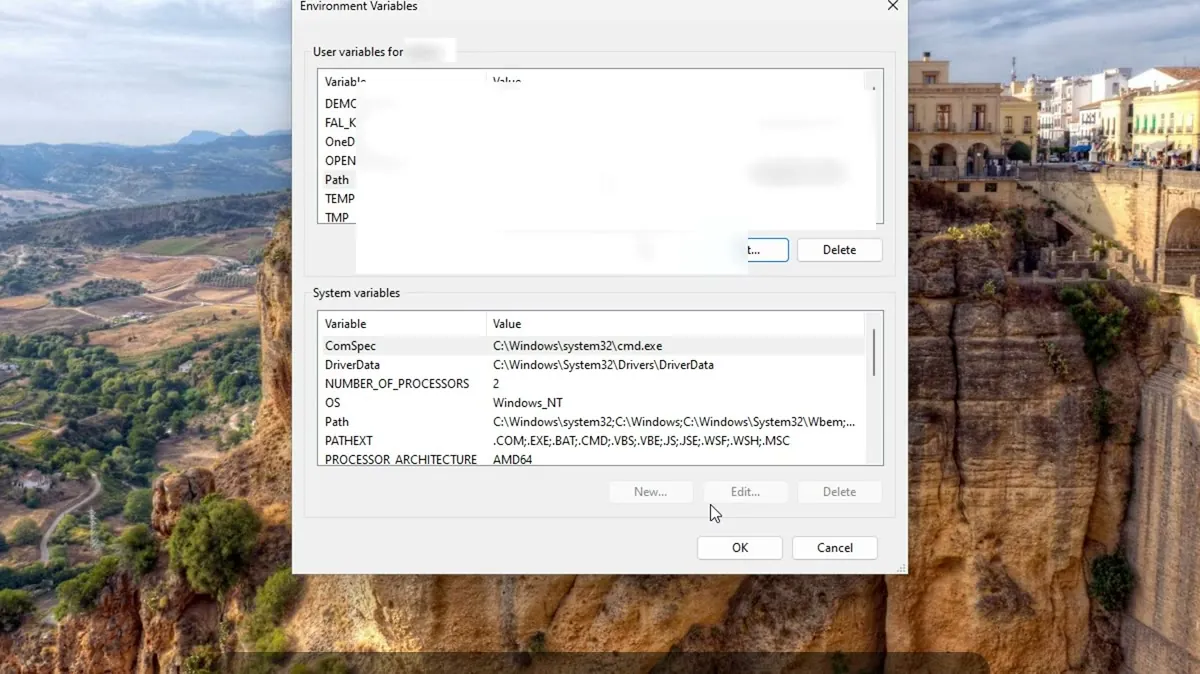
Click OK, and OK again in the Environment Variables window to save everything.
Step 5. Test it in a new Command Prompt
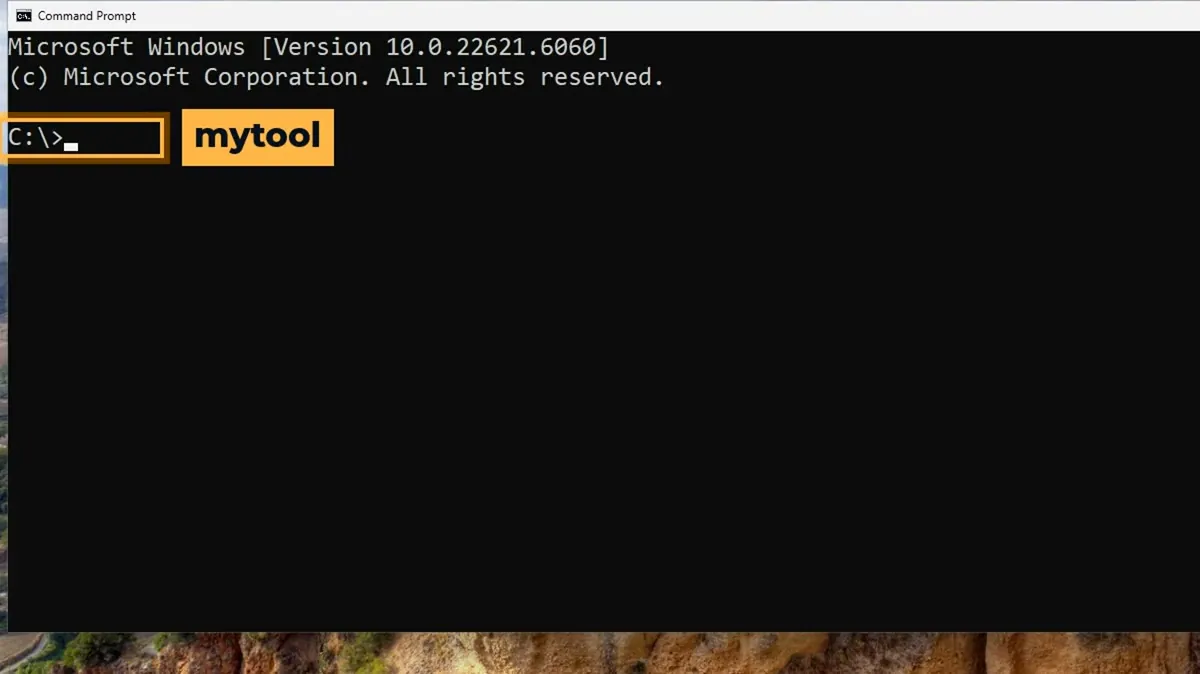
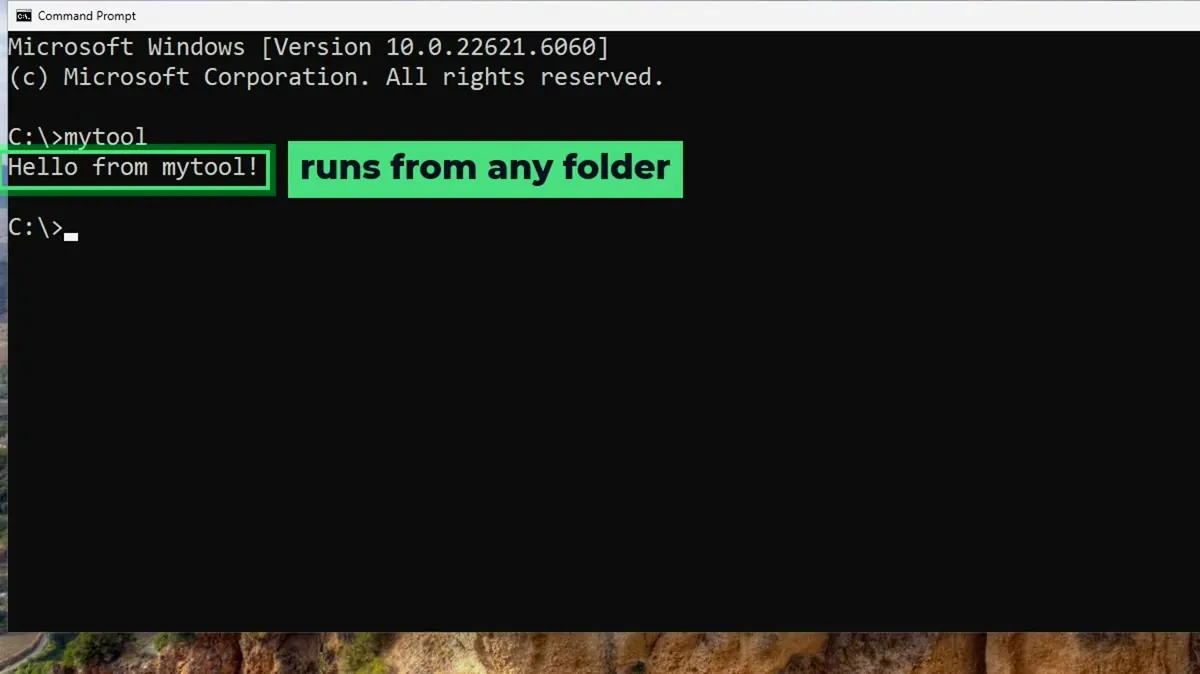
Open a new Command Prompt and type the program name – here mytool.
It runs from any folder, because Windows finds it through PATH.
Method 3: Set a variable with one command (setx)
Step 1. Type setx NAME value
In Command Prompt type setx, then the name and the value:
setx DEMO_COLOR blue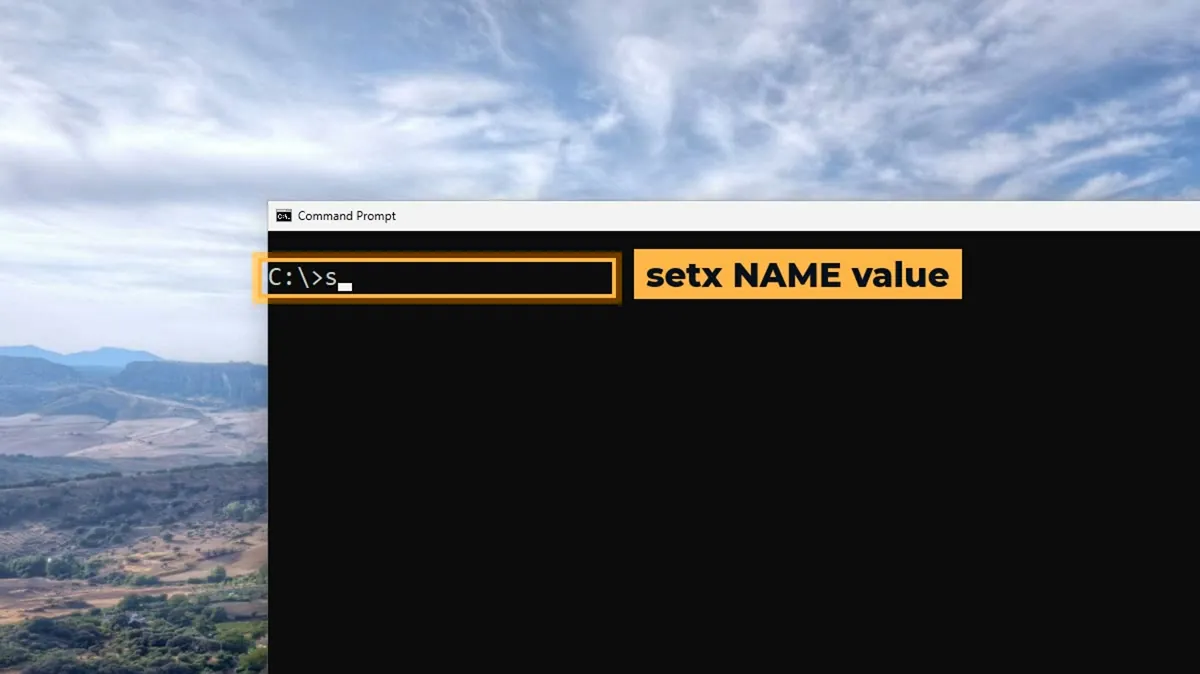
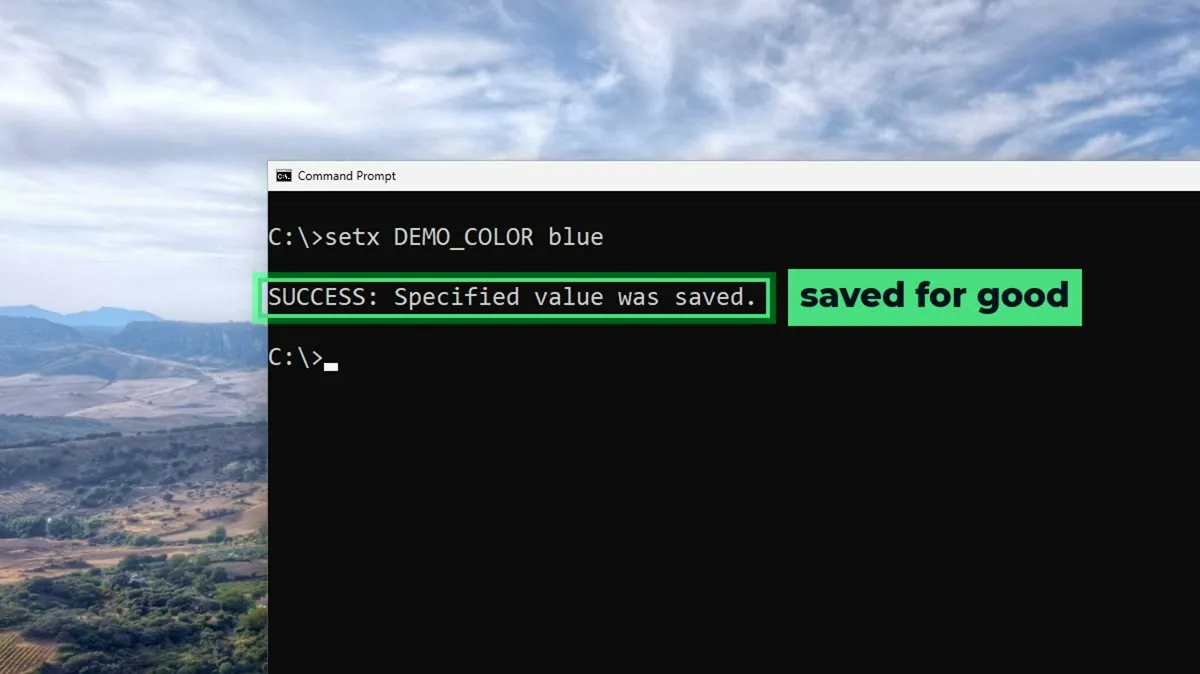
Step 2. Press Enter
Windows confirms SUCCESS: Specified value was saved. – the variable is saved for good.
Step 3. Check it in a new window
Close the window, open a new Command Prompt and type:
echo %DEMO_COLOR%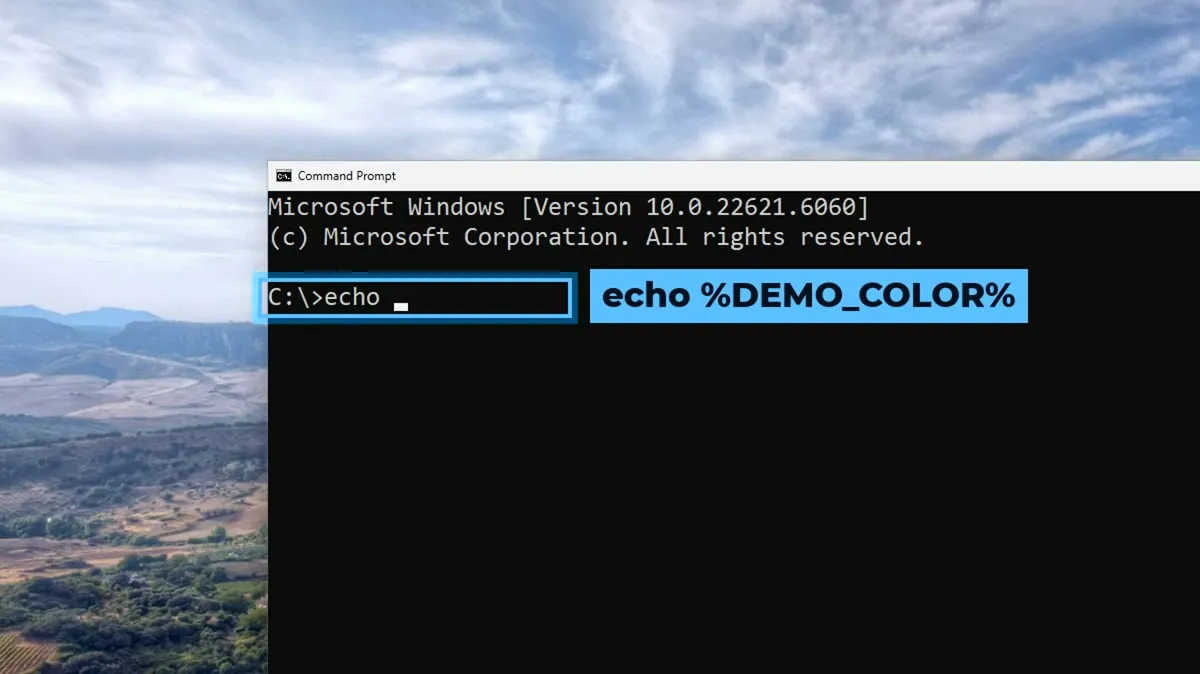
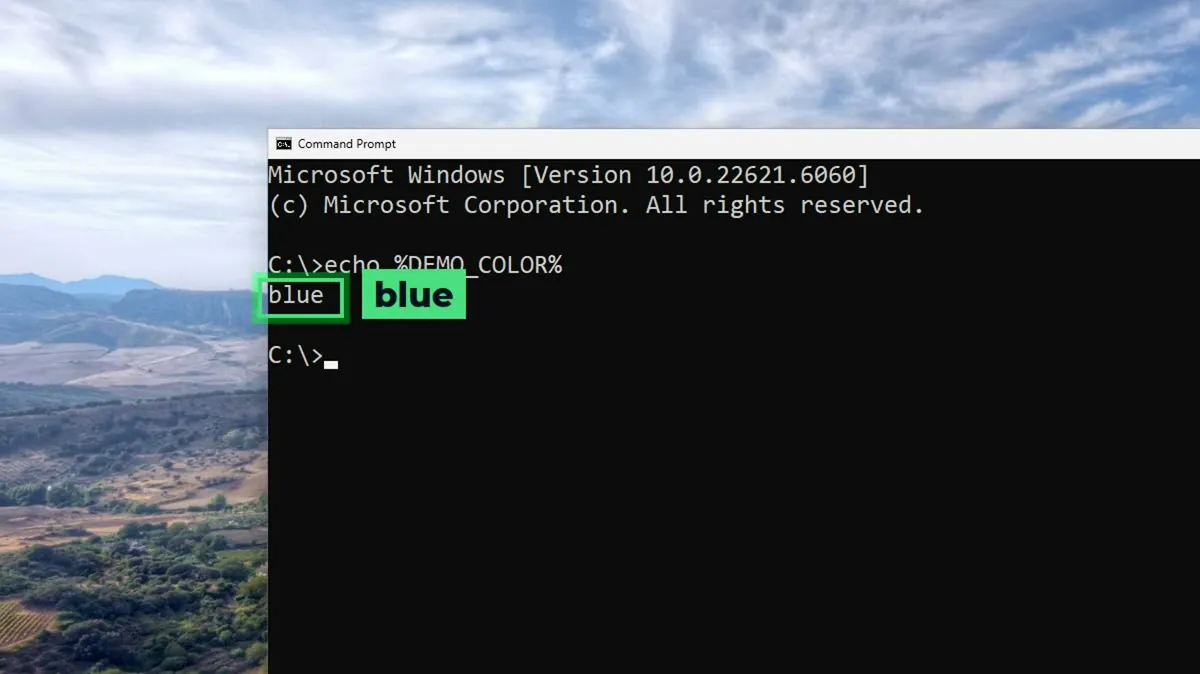
It prints blue. New variables only show up in windows you open after the change.
PowerShell: read a variable with $env:DEMO_COLOR.
Tips and troubleshooting
- Always open a new window after changing variables – old windows won’t see the change.
- Never delete existing entries from PATH – only add new ones.
- Don’t use setx to change PATH – it can cut long values (1024 characters).
- System variables affect every user and need administrator rights (Start → Edit the system environment variables → Environment Variables).
Summary
- New variable: Start → “Edit environment variables for your account” → New → name + value → OK.
- PATH: select Path → Edit → New → folder → OK → OK.
- Command:
setx NAME value, then open a new window.
Frequently Asked Questions
How do I open Environment Variables in Windows 11?
Click Start, type environment and choose Edit environment variables for your account (user variables) or Edit the system environment variables (system variables, needs admin rights).
What is the PATH variable?
PATH is a list of folders where Windows looks for programs when you type a command. If a program’s folder is in PATH, you can run it from any folder.
Why doesn't my new variable work in Command Prompt?
Windows that were already open do not see the change. Close Command Prompt (or your app) and open a new one.
Should I use setx to change PATH?
No. setx cuts values longer than 1024 characters, which can damage a long PATH. Edit PATH in the Environment Variables window instead.
What is the difference between user and system variables?
User variables affect only your account and need no admin rights. System variables affect every user on the PC and require administrator rights.