Can’t find a file you saved? Windows has two places to search: the search box on the taskbar, which looks through apps, settings and recent files, and the search box in File Explorer, which searches inside a folder and all its subfolders.
In this guide you will learn three ways to find any file in Windows 11 and Windows 10:
- Method 1 – quick search from the taskbar,
- Method 2 – search in File Explorer,
- Method 3 – search filters by type, size and date.
Method 1: Taskbar search
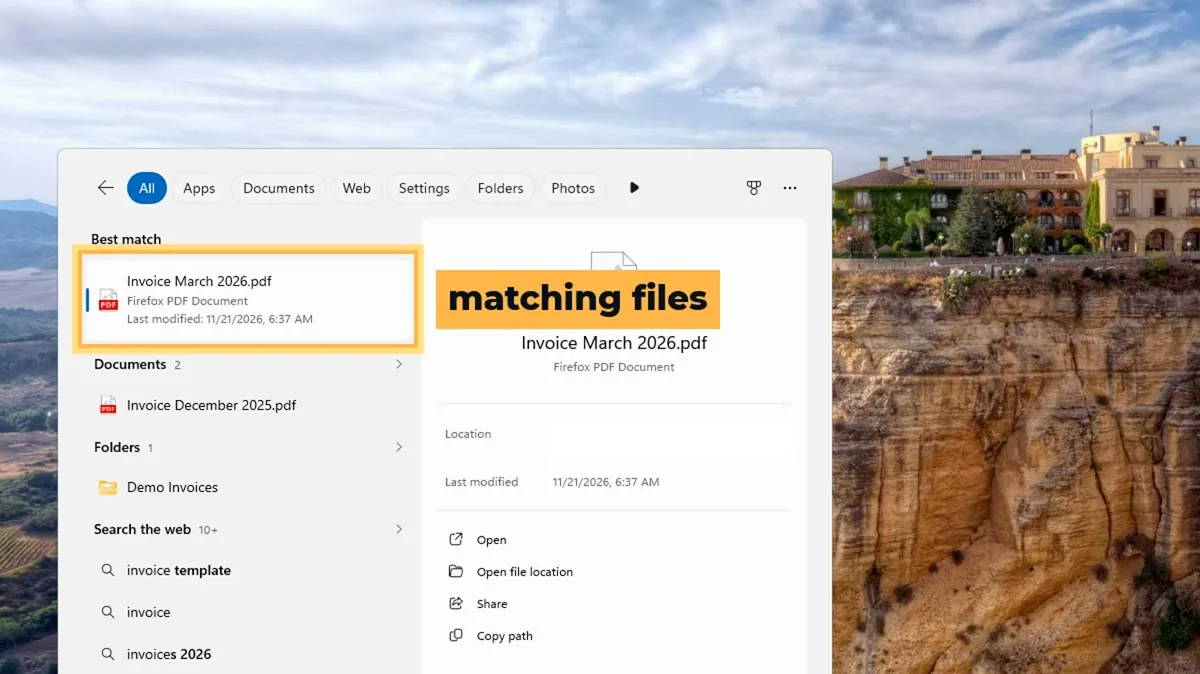
Step 1. Type part of the file name
Click the search box on the taskbar (or press Win + S) and type part of the file name, for example invoice. Windows shows matching files, apps and settings right away.
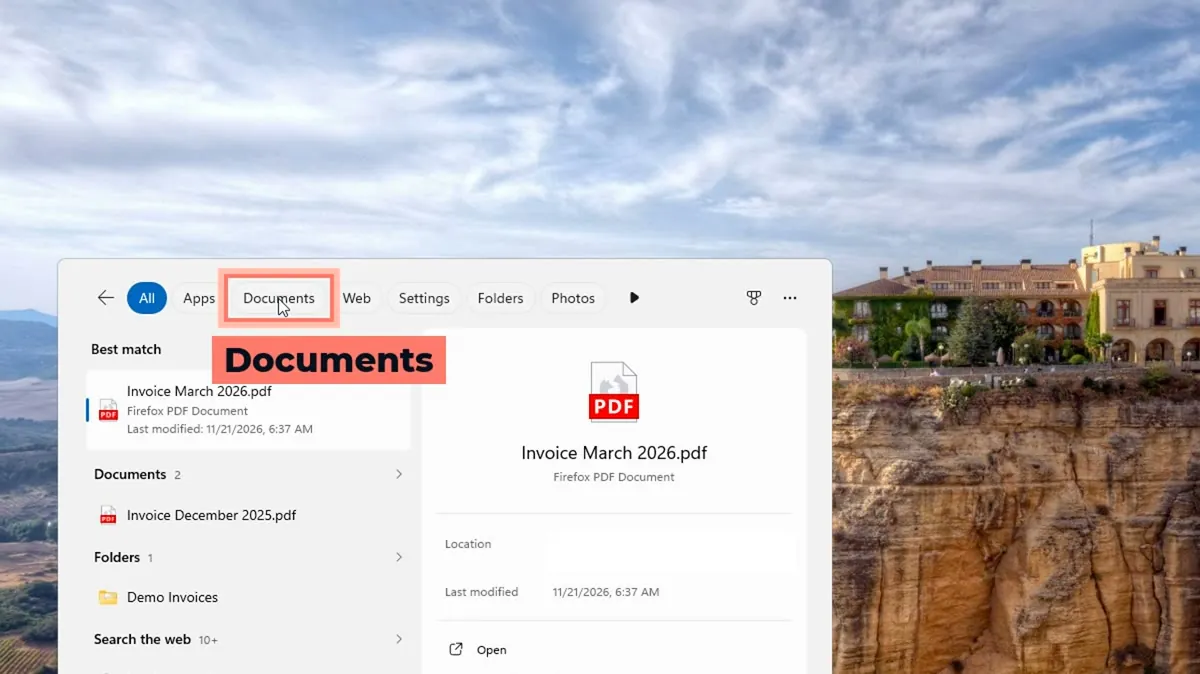
Step 2. Show only documents
Click Documents at the top of the results to see only files.
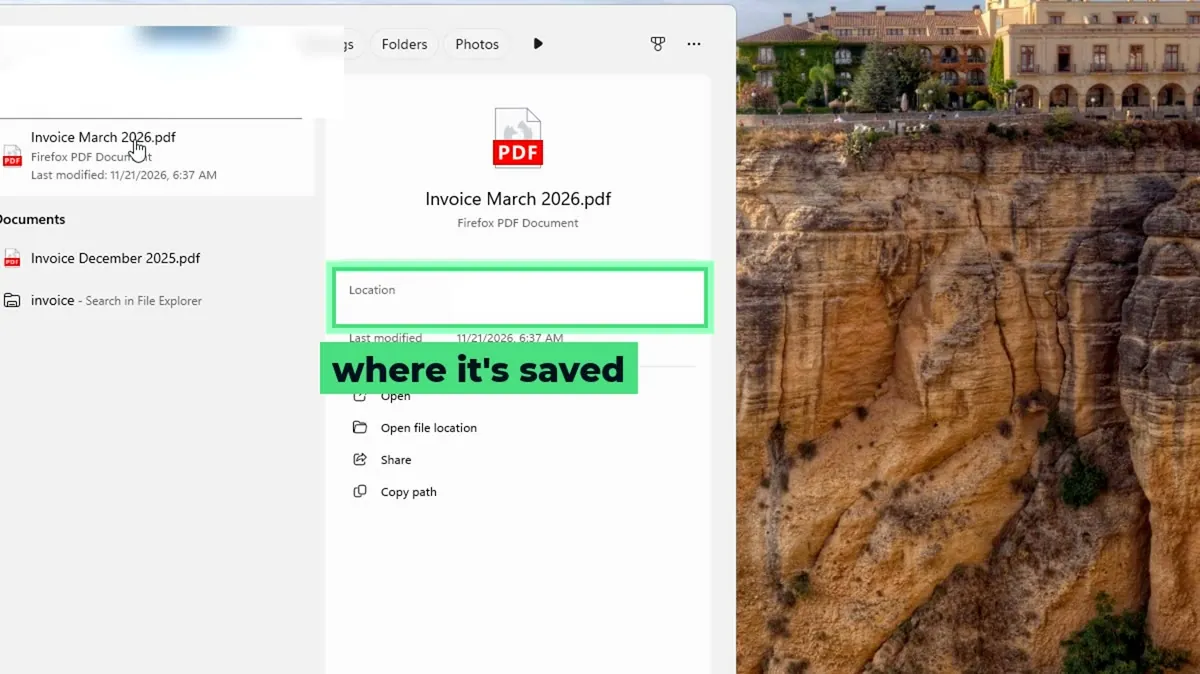
Step 3. Check where the file is saved
The right panel shows the file’s Location. Click the result to open the file, or choose Open file location to jump to its folder.
Method 2: Search in File Explorer
Step 1. Open the folder and click the search box
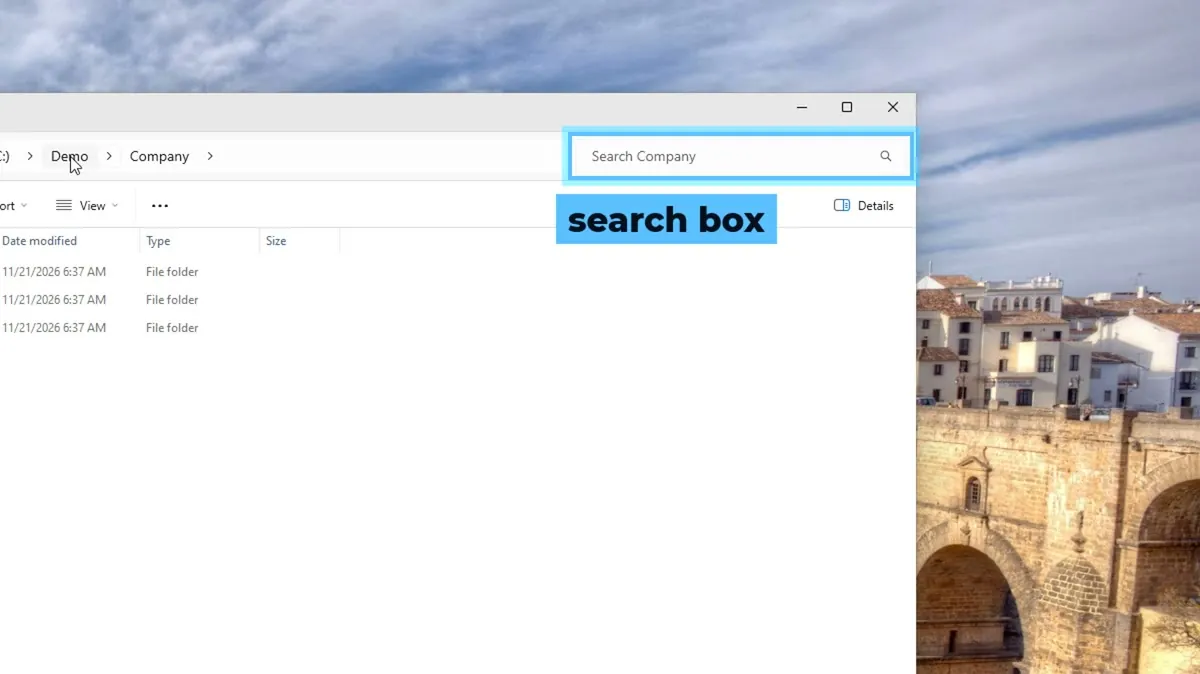
Open File Explorer (Win + E), go to the folder where the file might be and click the search box in the top-right corner.
Step 2. Type a word from the file name
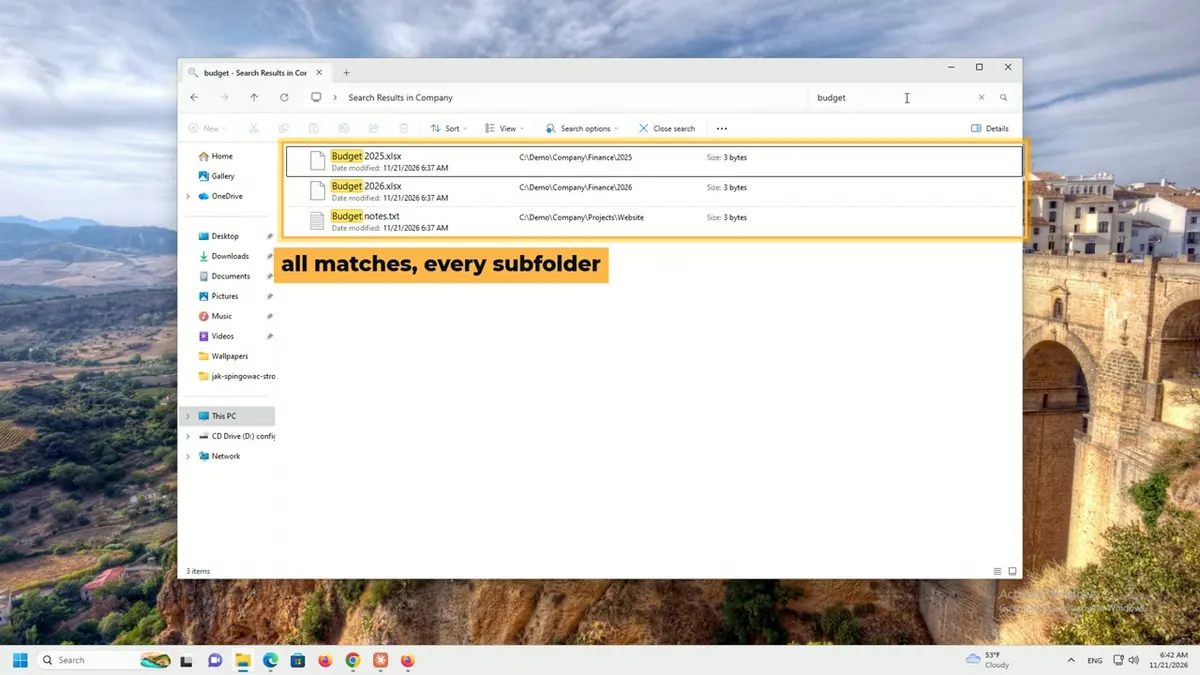
Type a word from the file name, here budget. Windows searches this folder and every folder inside it.
Step 3. See where each file is
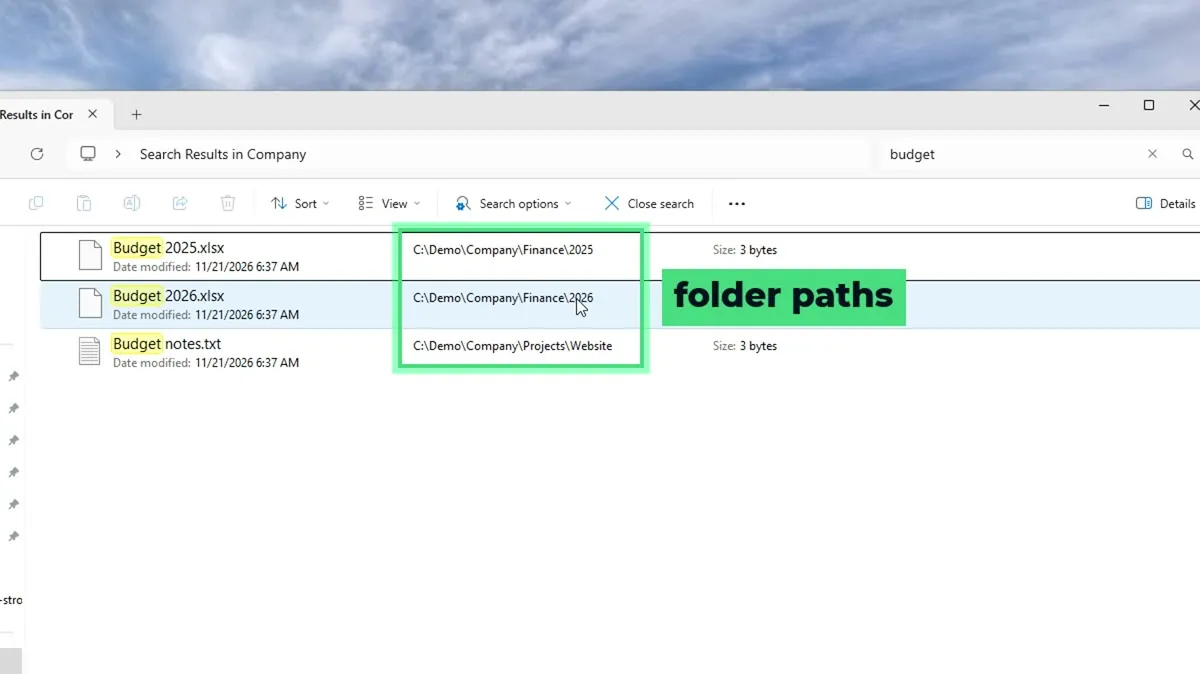
The results show each file with its folder path, so you can see exactly where it is.
Method 3: Search filters
Type these filters into the same File Explorer search box:
*.pdf– all PDF files (works for any extension:*.docx,*.jpg…),kind:picture– only images (alsokind:video,kind:music,kind:document),size:large– big files (alsosize:huge,size:gigantic),datemodified:this week– files changed recently (alsotoday,yesterday).
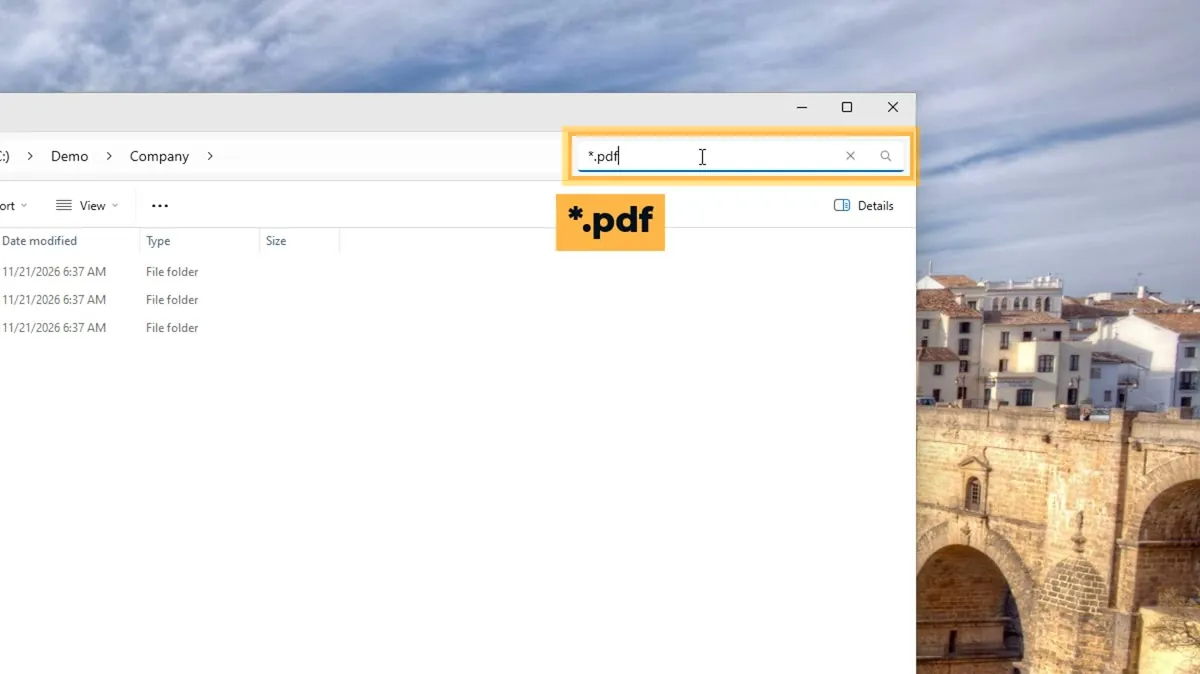
You can combine filters, e.g. kind:picture datemodified:this week. Click the X in the search box to clear the search.
Tips and troubleshooting
- You don’t need the full name – a few letters are enough.
- Search a smaller folder – it is much faster than searching the whole drive.
- Search inside documents: Search options → turn on File contents.
- Save a search you use often with Save search.
Summary
- Taskbar: Win + S → type part of the name → Documents.
- File Explorer: open the folder → search box → type a word (searches all subfolders).
- Filters:
*.pdf,kind:picture,size:large,datemodified:this week.
Frequently Asked Questions
How do I search for a file in Windows 11?
Click the search box on the taskbar and type part of the file name, or open File Explorer, go to the folder and type in the search box in the top-right corner.
How do I find all PDF files on my PC?
Open File Explorer, go to the folder or drive and type *.pdf in the search box. The same works for any extension, e.g. *.docx.
How do I find large files in Windows?
In File Explorer search type size:large (or size:huge, size:gigantic) to filter files by size.
How do I find files I changed recently?
Type datemodified:this week (or today, yesterday) in the File Explorer search box.
Can Windows search inside documents?
Yes. In File Explorer click Search options and turn on File contents. Searching is slower but finds words inside documents.