Windows Update is like a delivery van that shows up whenever it wants. Most of the time that is great, because it brings security fixes. But sometimes you need it to wait: you are on a limited mobile hotspot, you are about to give a presentation, or a new update broke a driver and you want to hold off until it is fixed.
In this guide you will learn four ways to stop automatic updates in Windows 11 and Windows 10, from the easiest and safest to the most permanent:
- Method 1 – pause updates (up to 5 weeks),
- Method 2 – set your connection as metered,
- Method 3 – disable the Windows Update service,
- Method 4 – turn off automatic updates in Group Policy (Pro, Enterprise, Education).
Method 1: Pause updates (easiest and safest)
Step 1. Open Windows Update settings
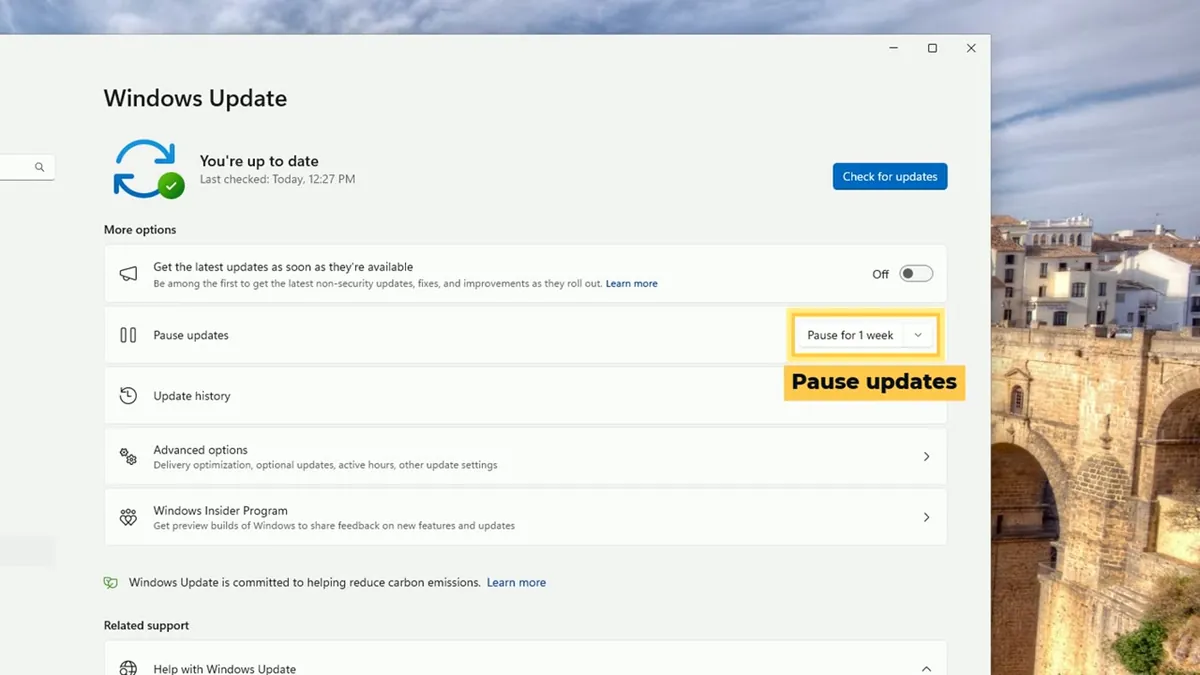
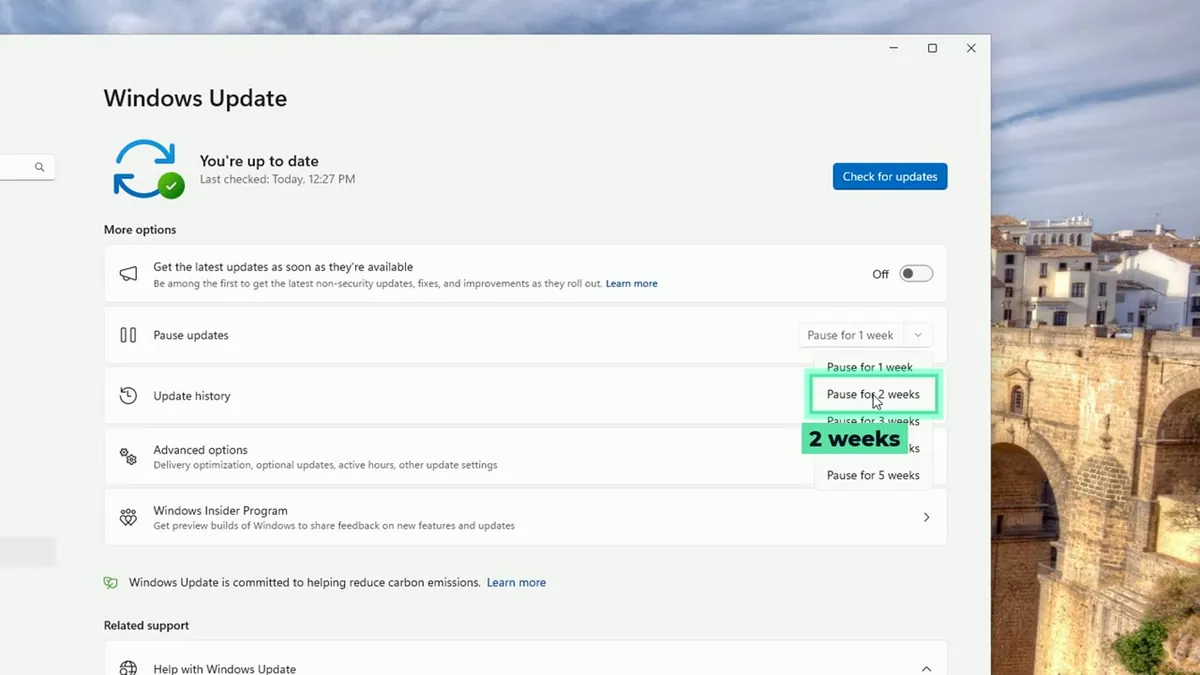
Open Settings (Win + I) and click Windows Update. Next to Pause updates, open the drop-down list.
Step 2. Choose how long to pause
You can pause for 1 to 5 weeks.
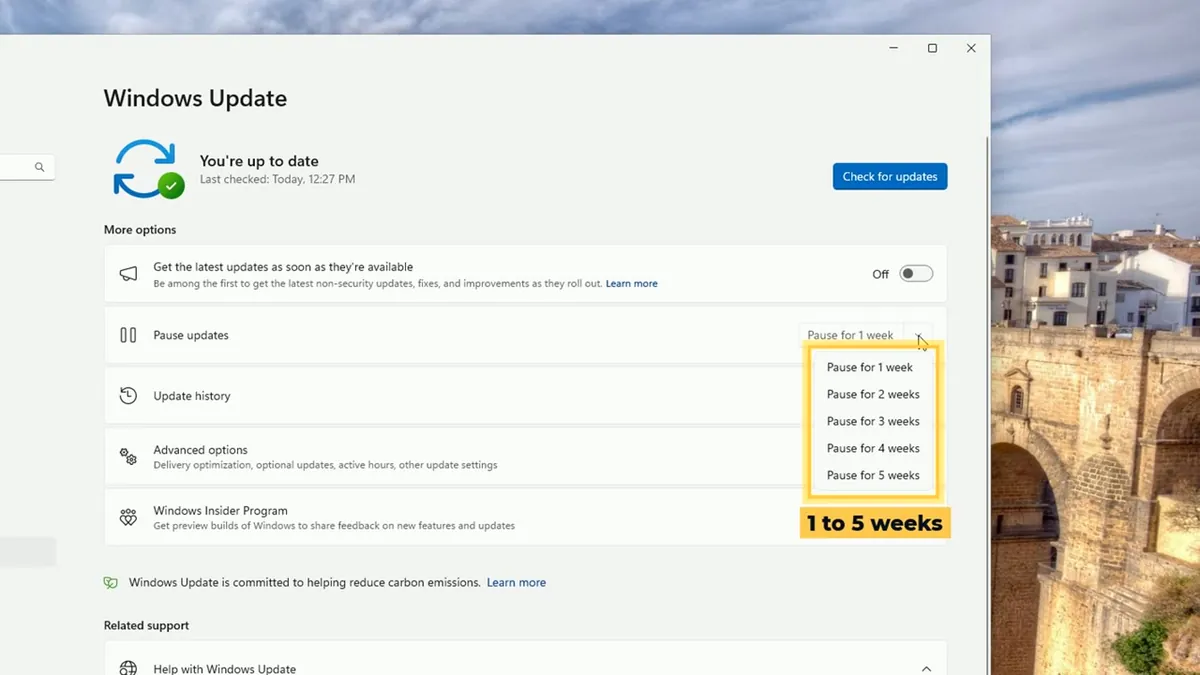
In our example we choose Pause for 2 weeks.
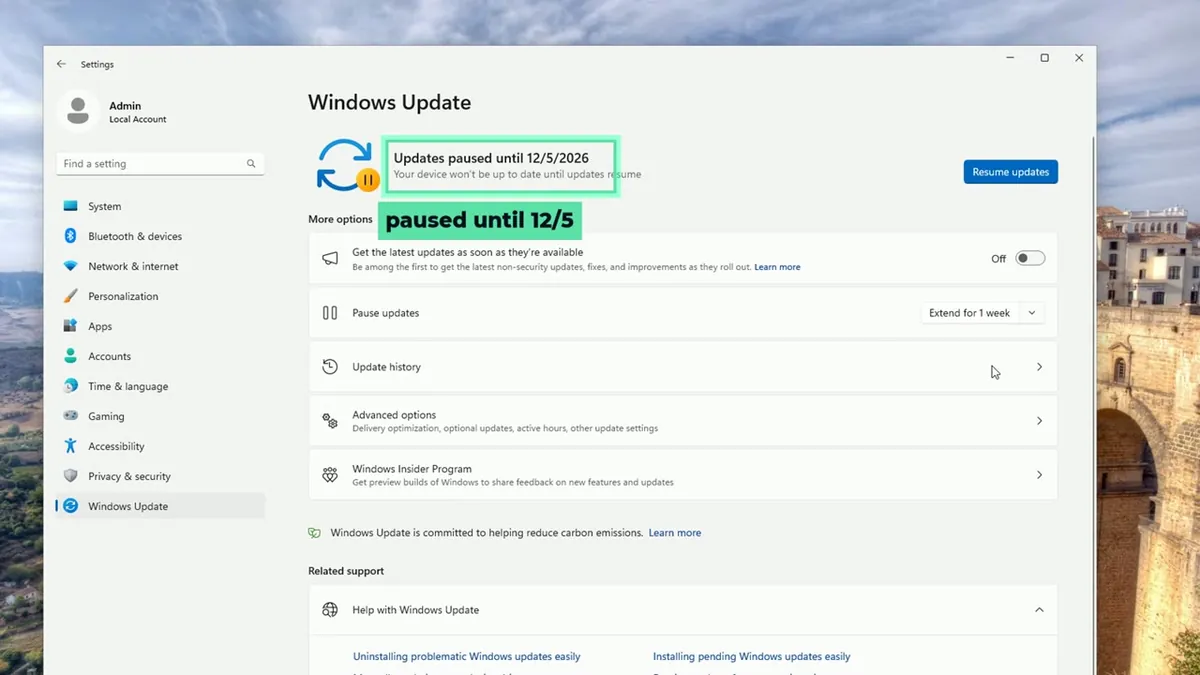
Windows now says updates are paused and shows the date when they will start again.
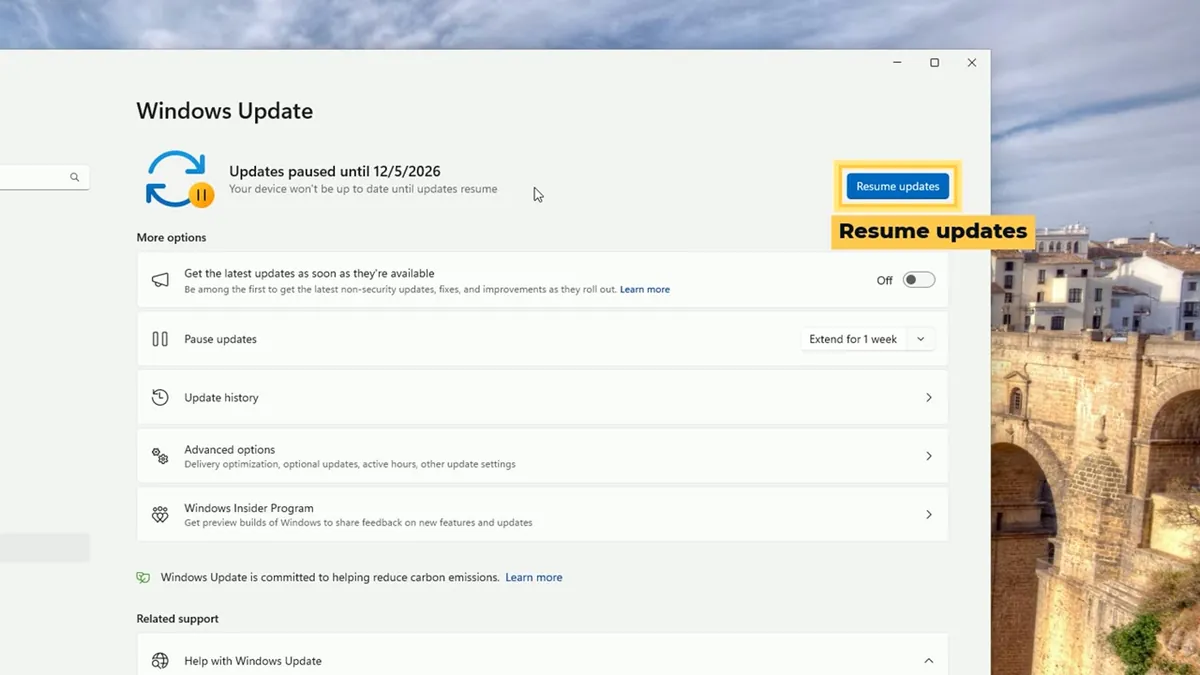
Step 3. Resume when you are ready
Click Resume updates at any time to go back to normal.
Windows 10: Settings → Update & Security → Windows Update → Pause updates for 7 days, or Advanced options → Pause until and pick a date. The maximum is 35 days; after that Windows installs the latest updates before you can pause again.
Method 2: Use a metered connection
Windows does not download most updates automatically on a metered network.
Step 1. Open your network connection
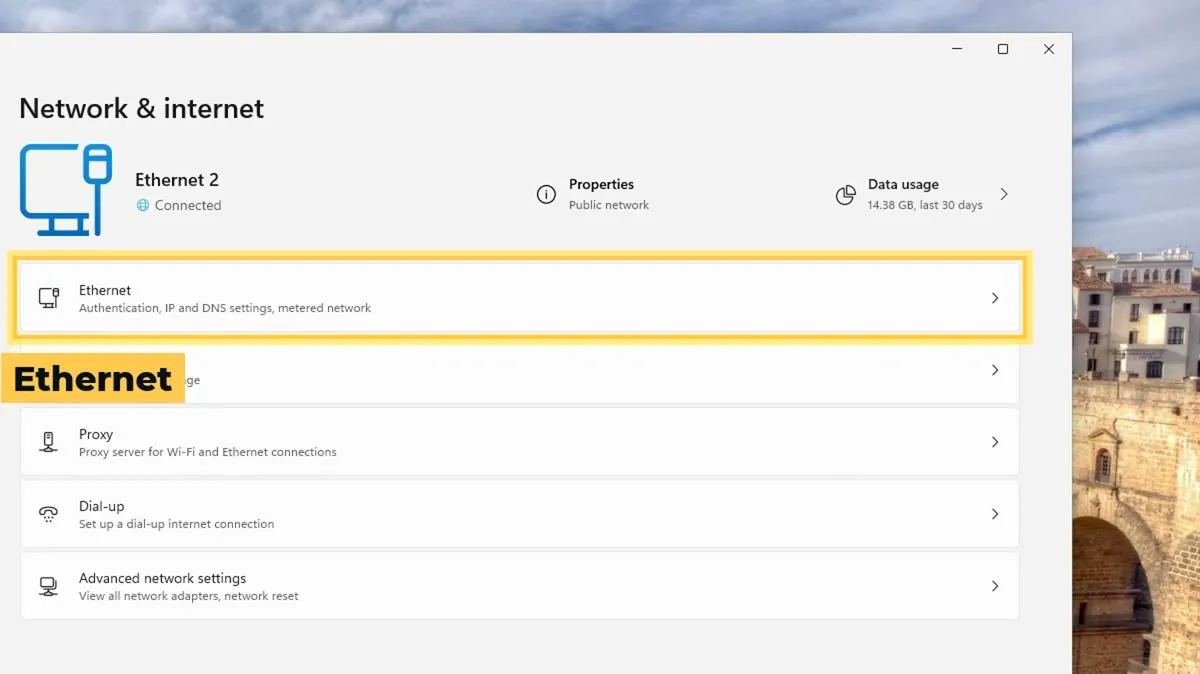
In Settings, click Network & internet.
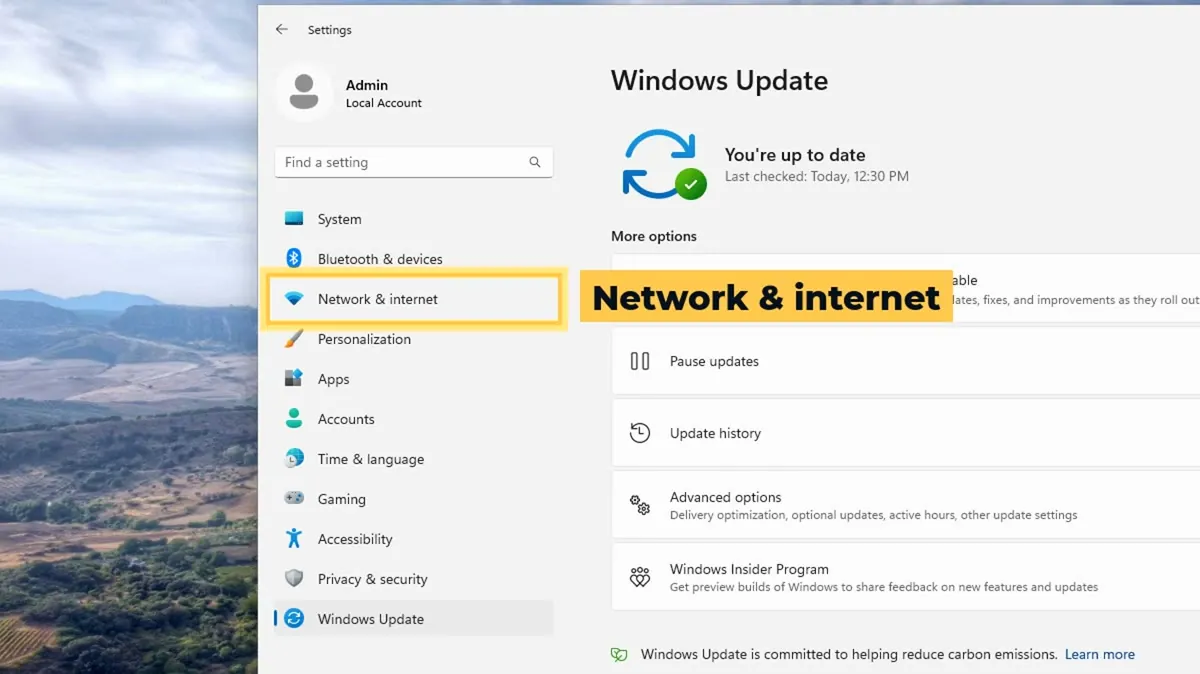
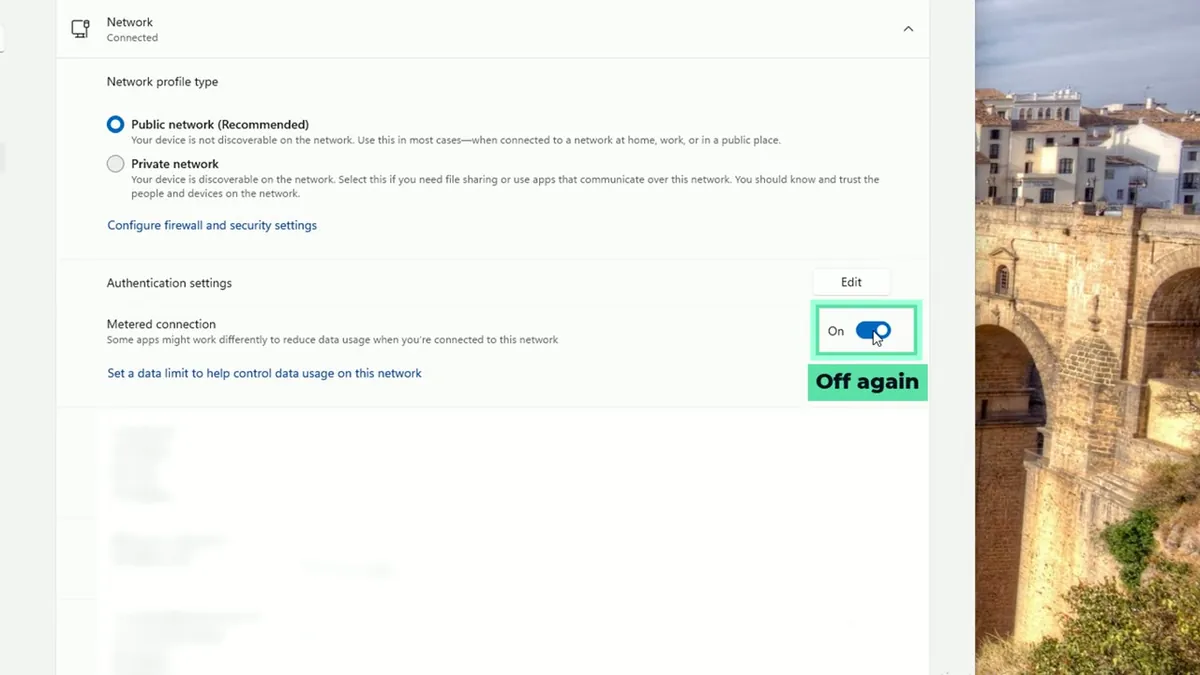
Open your connection – Ethernet or Wi-Fi (for Wi-Fi, open the properties of the network you are connected to).
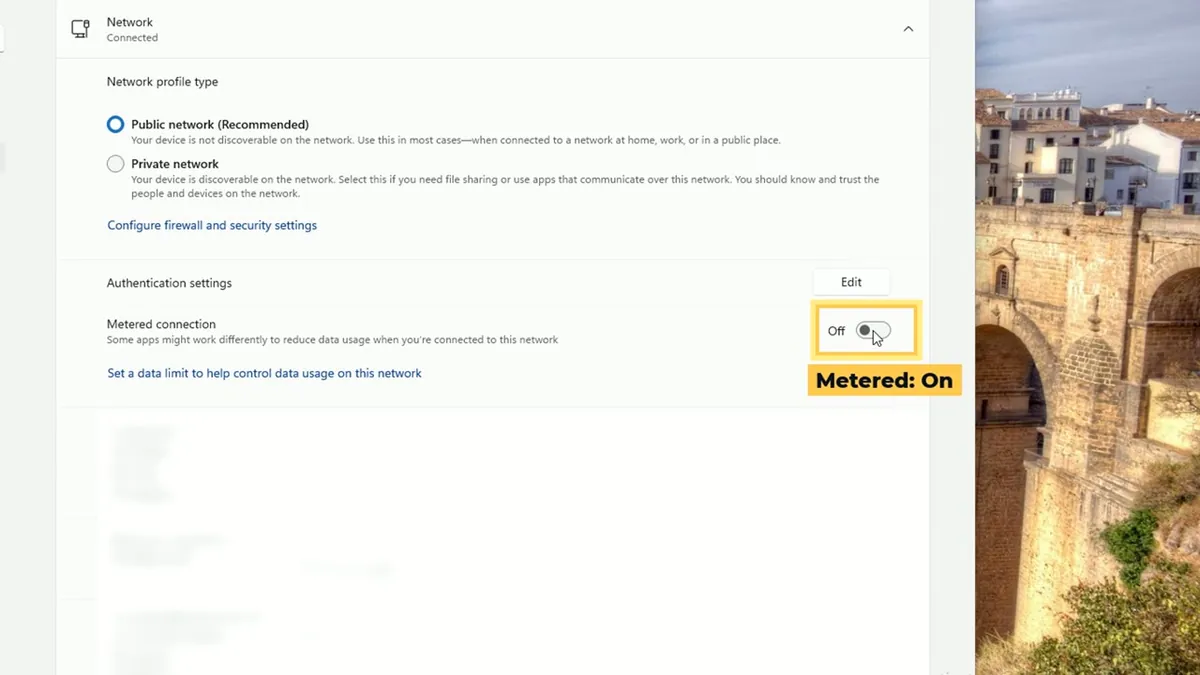
Step 2. Turn on Metered connection
Switch Metered connection to On.
Step 3. Check the Windows Update option
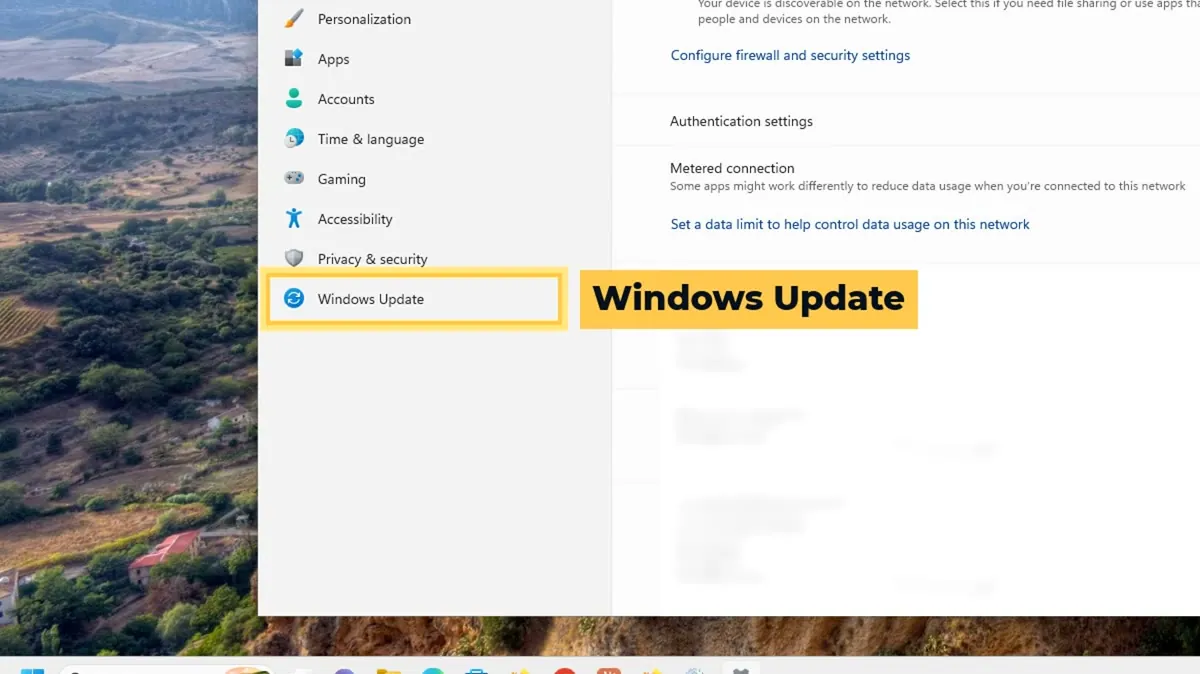
Go back to Windows Update…
…open Advanced options…
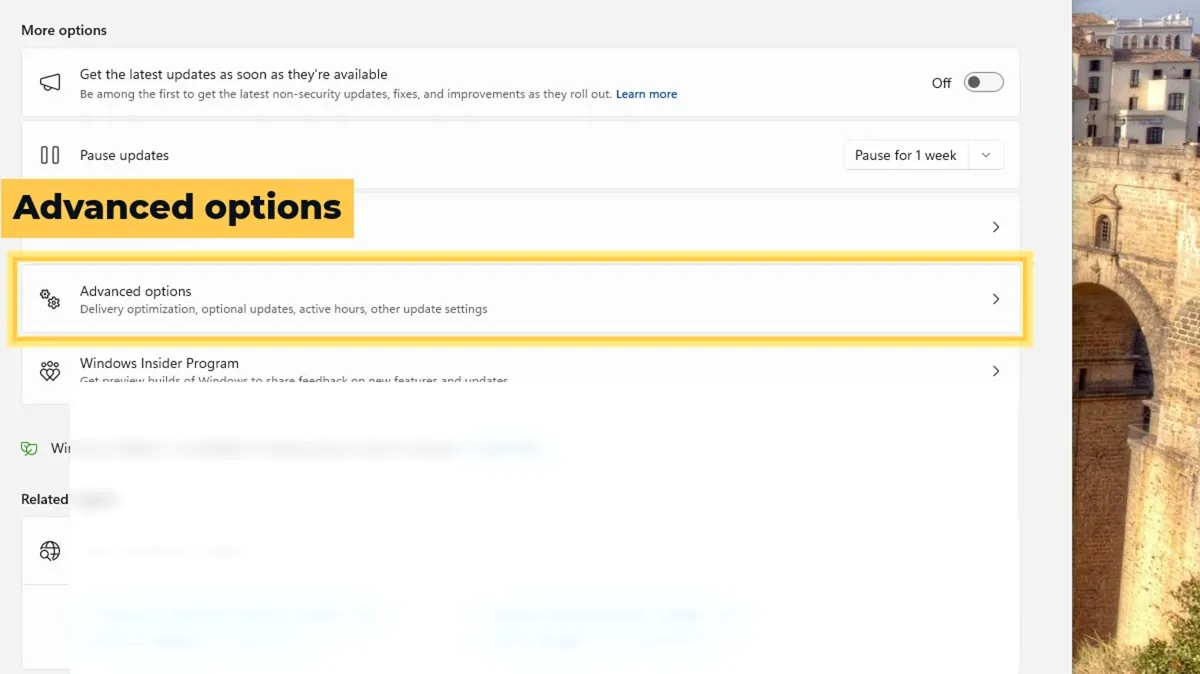
…and make sure Download updates over metered connections is Off.
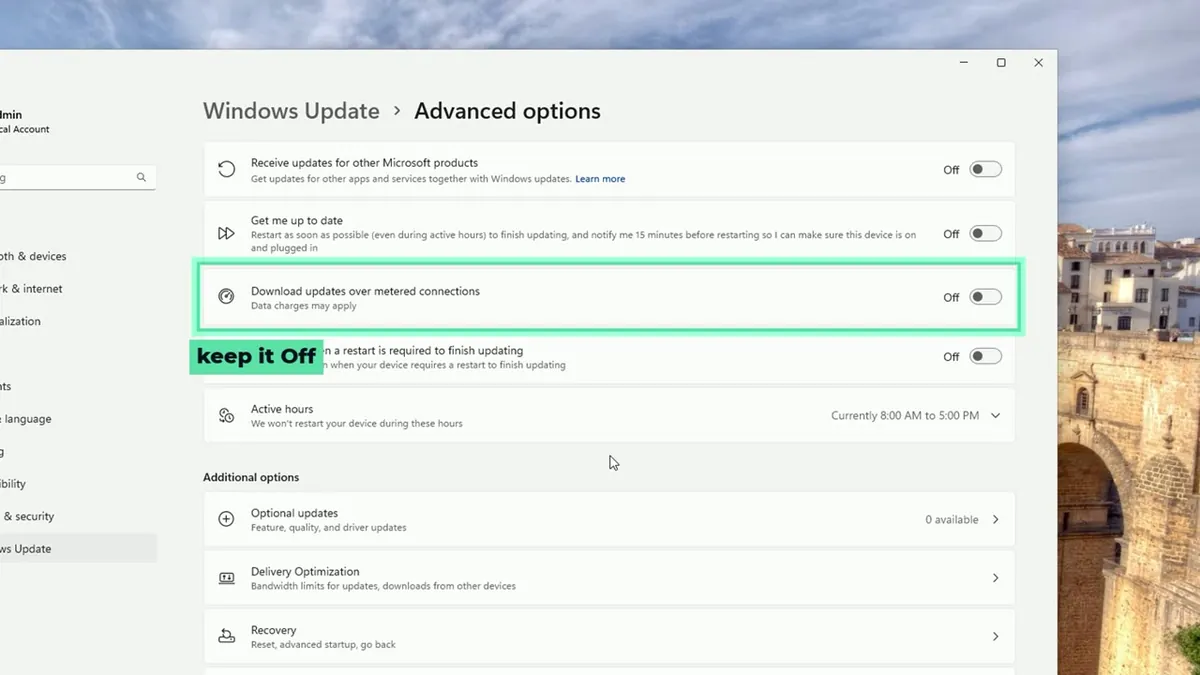
Critical security fixes may still come through – which is a good thing. To undo this method, switch Metered connection off again.
Method 3: Disable the Windows Update service
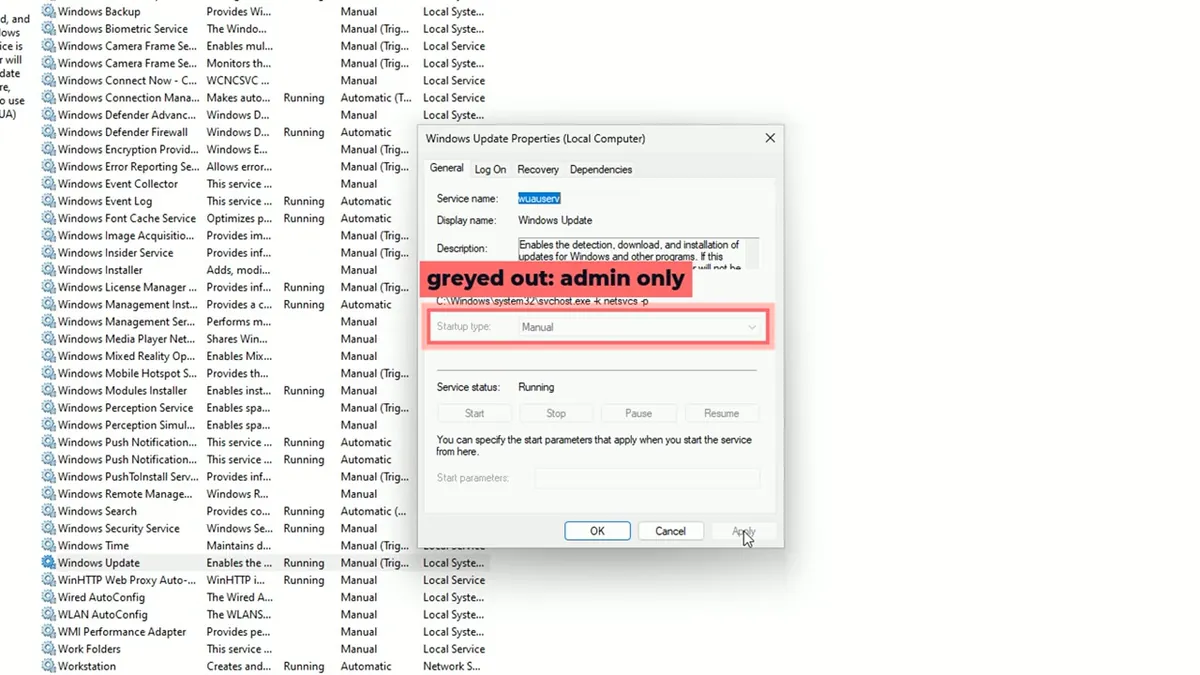
Note: this needs administrator rights, and Windows may turn the service back on by itself.
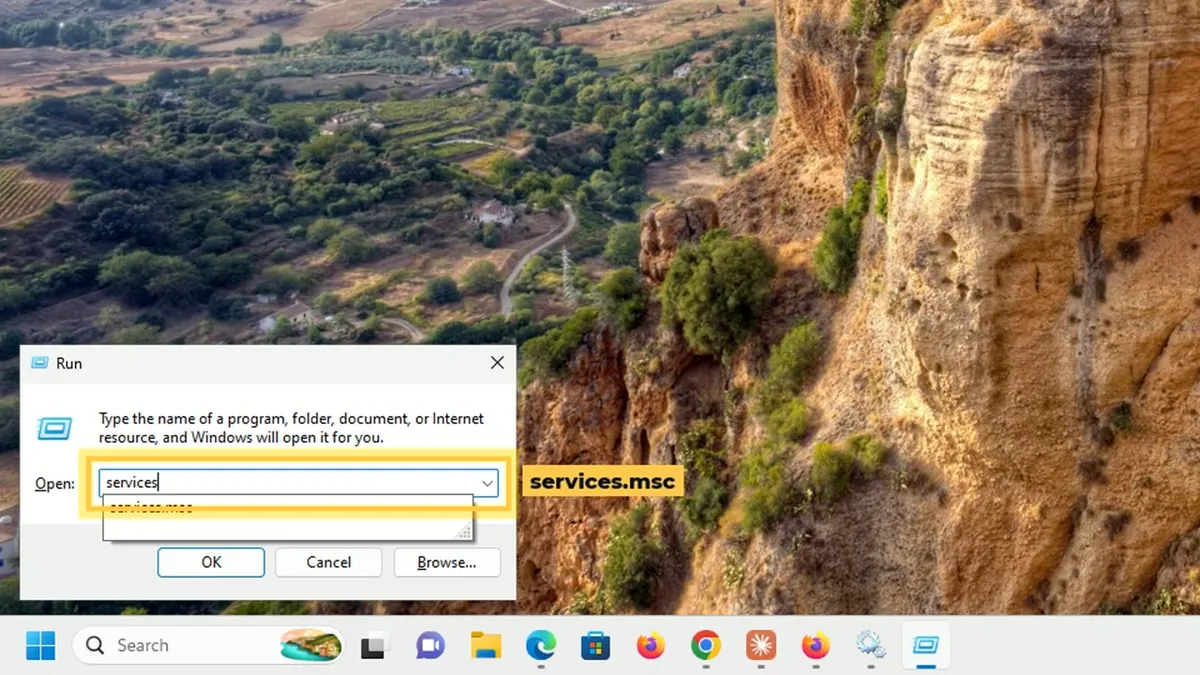
Step 1. Open Services
Press Win + R, type services.msc and press Enter.
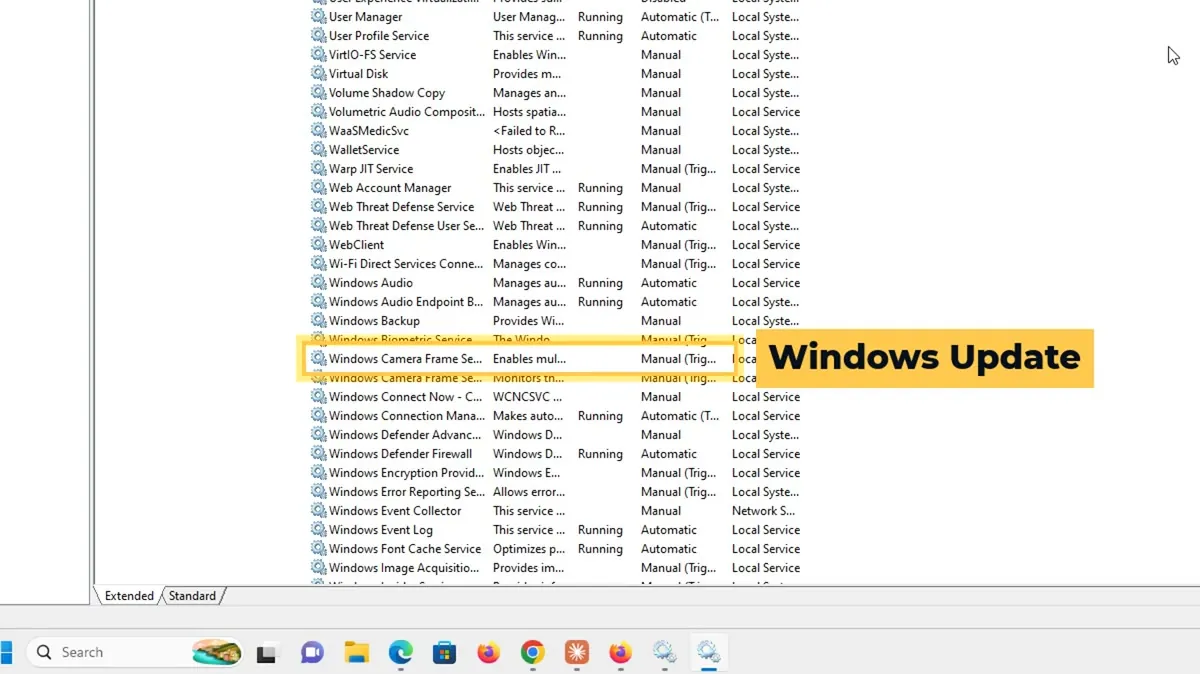
Step 2. Open the Windows Update service
Scroll down to Windows Update and double-click it.
Step 3. Set Startup type to Disabled and stop it
Set Startup type to Disabled…
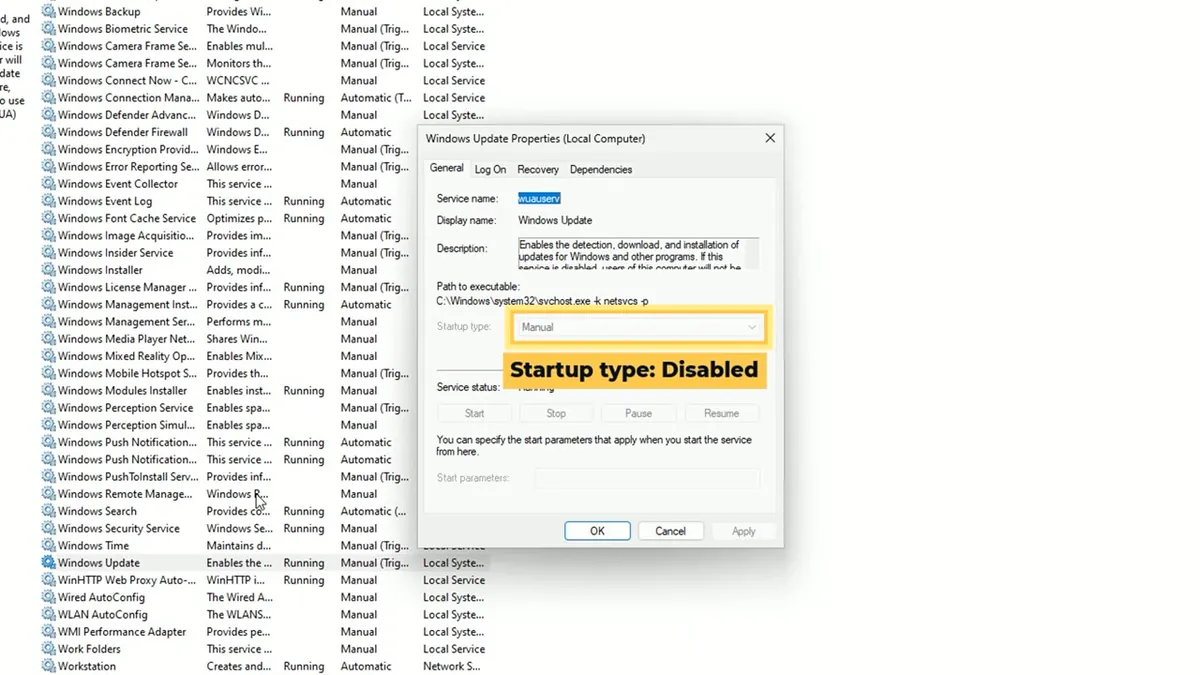
…click Stop…
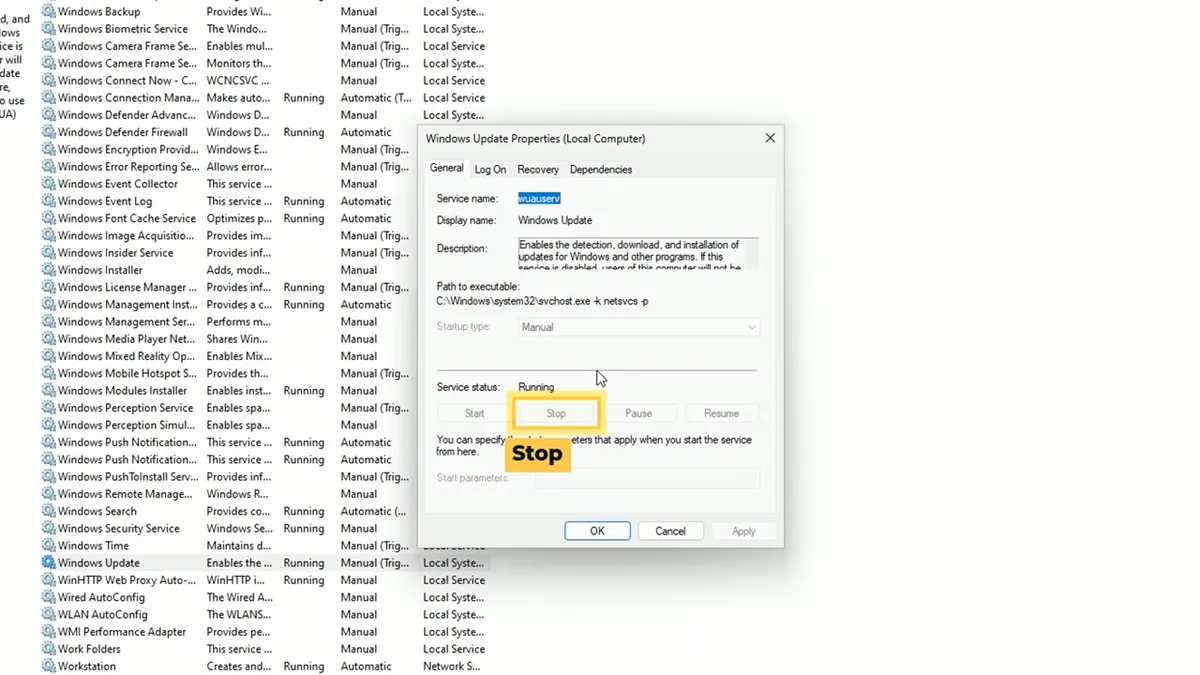
…and then Apply and OK.
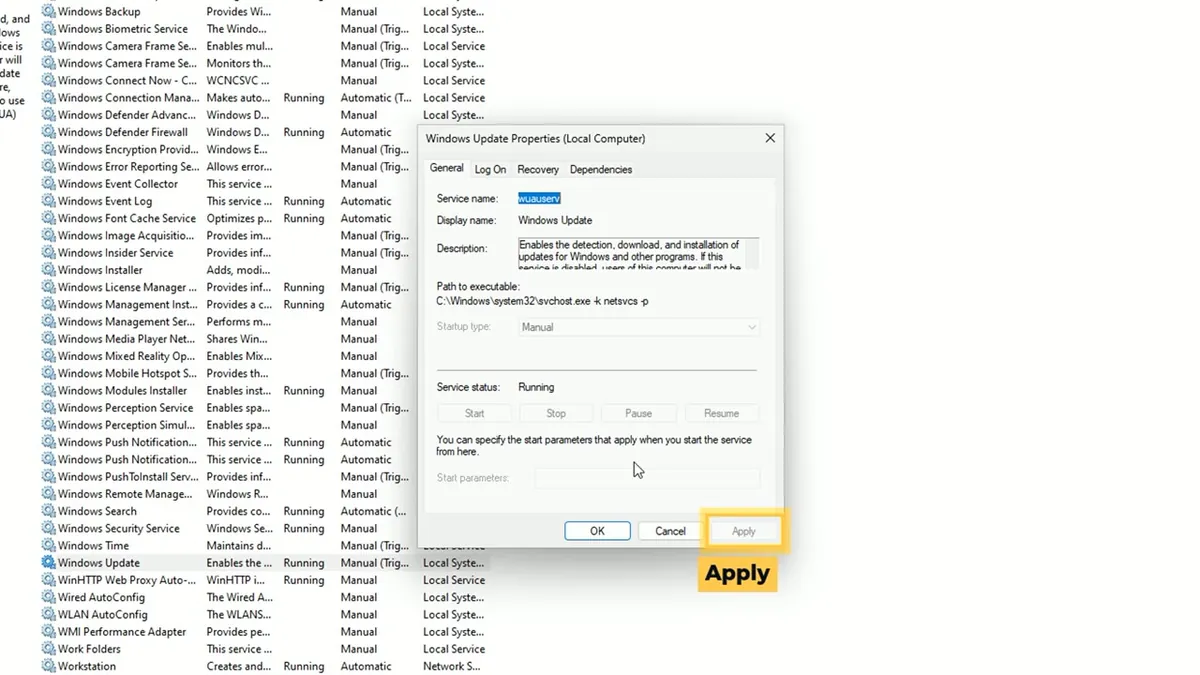
If these options are greyed out, your account is not an administrator. When you are done, set the Startup type back to Manual.
Method 4: Group Policy (Windows Pro, Enterprise, Education)
- Press Win + R, type
gpedit.mscand press Enter. - Go to Computer Configuration → Administrative Templates → Windows Components → Windows Update (in Windows 11: Manage end user experience).
- Double-click Configure Automatic Updates.
- Choose Disabled to turn off automatic updates – or Enabled with option 2 – Notify for download and auto install, so nothing installs without your OK.
- Click Apply and OK.
gpedit.mscTips and troubleshooting
- Pausing is the safest choice because it ends on its own.
- Don’t leave updates off for months – you would miss important security patches.
- Set Active hours (Windows Update → Advanced options) so Windows never restarts while you work.
- One bad update? Uninstall it in Update history → Uninstall updates instead of blocking everything.
Summary
- Pause: Settings → Windows Update → Pause updates (1–5 weeks).
- Metered: Network & internet → your connection → Metered connection On.
- Service: services.msc → Windows Update → Startup type Disabled → Stop → Apply.
- Group Policy: gpedit.msc → Configure Automatic Updates → Disabled.
Frequently Asked Questions
How do I stop Windows 11 updates permanently?
There is no fully permanent switch in Home editions. The closest options are disabling the Windows Update service or, in Pro/Enterprise/Education, setting Configure Automatic Updates to Disabled in Group Policy. Windows may re-enable the service, and leaving updates off for long is risky.
How long can I pause Windows updates?
Up to 5 weeks (35 days) in Windows 11 and Windows 10. After that Windows installs the latest updates before you can pause again.
Does a metered connection stop all updates?
It stops most automatic downloads, as long as “Download updates over metered connections” is turned off. Critical security fixes may still be downloaded.
Is it safe to disable Windows updates?
Only for a short time. Updates bring security patches, so pausing is the safest choice because it ends on its own.
How do I uninstall one bad update instead?
Go to Settings → Windows Update → Update history → Uninstall updates, and remove only the update that causes problems.